

Participants, extras and forms in a portal booking
The optional steps of a booking: assigning participants, adding extras and completing the product's forms.
After choosing the product and the date, the booking can have three more steps: participants, extras and form. The extras and the form only appear if the product has them configured.
Participants
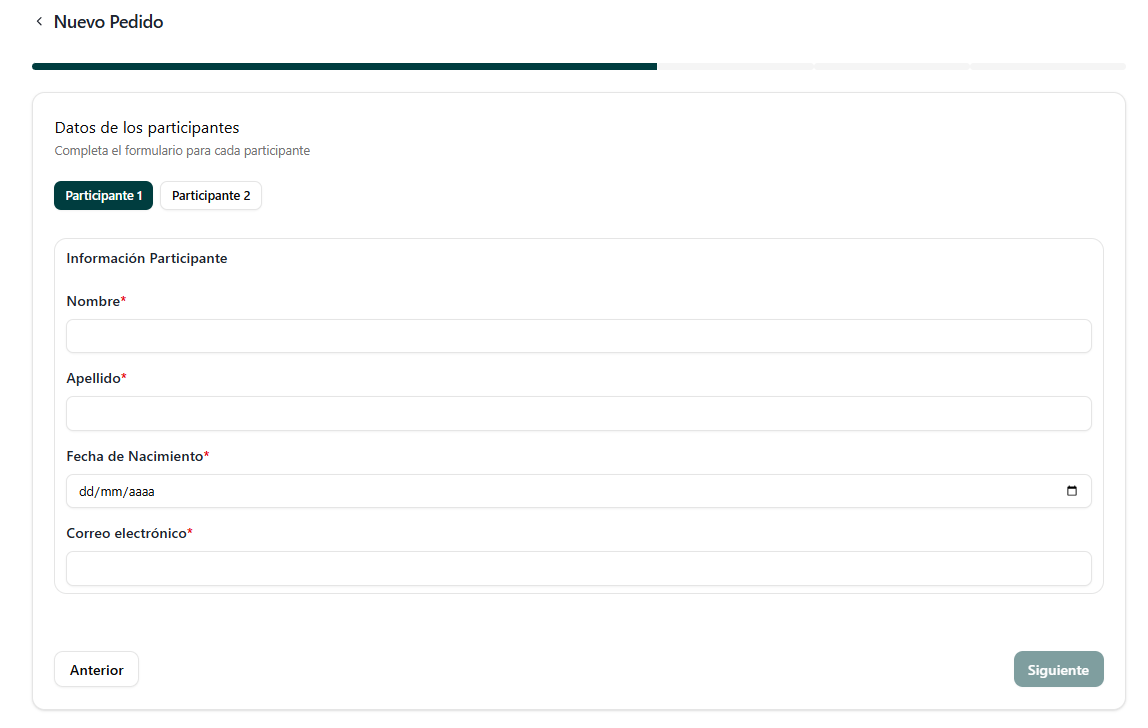
This step is called "Participant details". Assigning participants is optional: those you do not assign are booked as anonymous.
- Click Add participant and search by name.
- If they do not exist, click + to create them in Add Participant (first and last name required, phone optional).
- You cannot assign more participants than the number you indicated in the previous step. For rental there is no limit.
- If the product has several price types (for example, adult and child), participants are assigned to each one ("N/M").
If the product has a participant form
This step is replaced by the form, with a "Participant N" tab for each participant. You have to complete it for all of them before continuing. The data is saved on each participant's record.
Extras
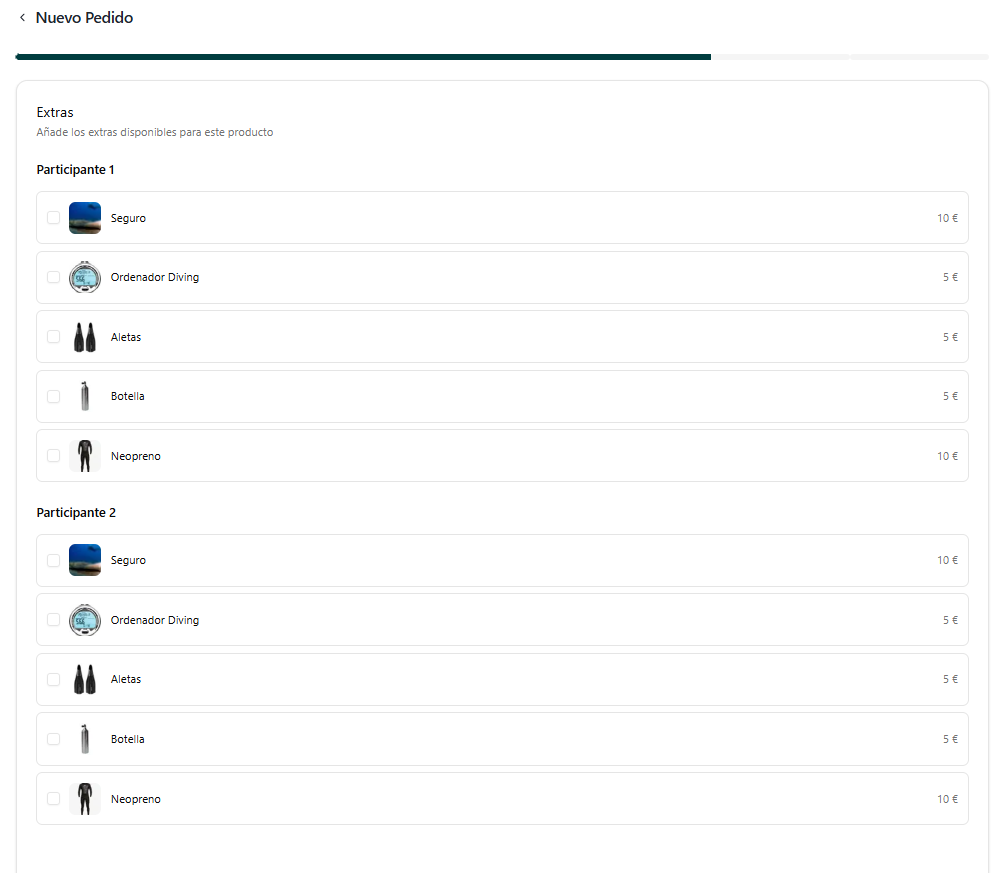
This step only appears if the product has extras ("Add the extras available for this product"). Check the ones you want; each one shows its price. If you have assigned participants, extras are chosen per participant.
Extra groups indicate a minimum and a maximum ("min. N · max. N"): you cannot continue if you do not meet them.
Rental packs, courses and lift passes do not have extras.
Form
This step only appears if the product has a checkout form: "Complete the information required by this product". Fill it in before confirming. Courses and lift passes do not have a form.
If the booking is created but the form answers cannot be saved, you will see a warning asking you to request them from the customer again (Warnings and errors when booking).
Related guides
Related guides
- Partner PortalIndex of the Partner Portal guides: how to set it up, how partners log in and how they create bookings of each type.
- Give a partner access to the Partner PortalHow to enable a partner's access to the Partner Portal from Lueira and what you need to share with them so they can log in.
- Partner catalog: which products a partner can sellHow to limit the products a partner sees and sells in the Partner Portal with their catalog, and what happens if they don't have one.
- Partner prices: inherit, fixed price and pricing schemesHow to give each partner their own prices and VAT in their catalog: inherit the price, set a fixed one or use flat and tiered schemes.
- Find out about the bookings your partners makeWhere to see the bookings created from the Partner Portal and how to turn on the email notification.
- Log in to the Partner PortalHow a partner enters the portal with their email and a verification code, and what to do if something goes wrong.