

Instructor ranking per product
Set up an instructor priority order specific to each private or group lesson product: how to create it, how it affects automatic assignment and how it is reflected when creating new instructors.
On this page
You can define, for each private lesson product or group lesson product, its own teachers ranking: a priority order that Lueira will use to assign teachers automatically in that product, instead of the global instructor order.
It is an optional feature: if you do not set up any ranking on a product, it will keep using the global order, as before.
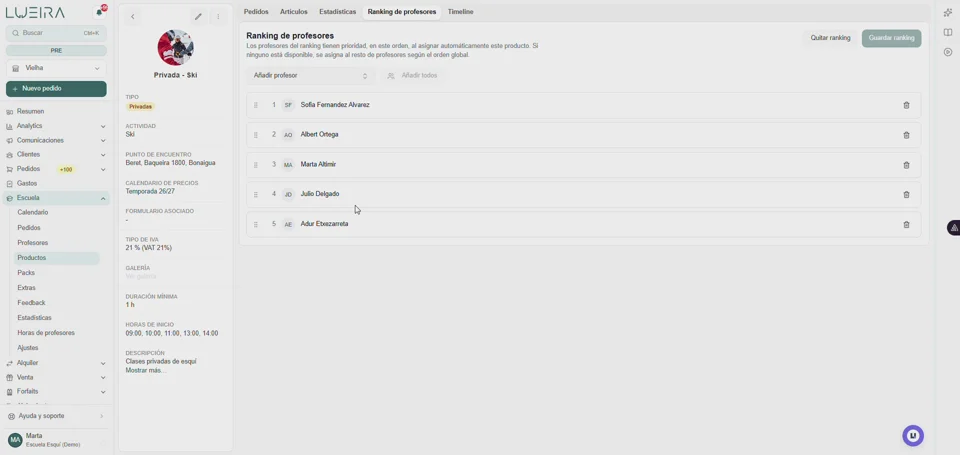 Ranking de profesores por producto
Enable the feature
Before you can set up the ranking on a product, enable this feature for your school:
Go to Settings → Features.
Turn on the "Teachers ranking" switch.
Previously, this feature had to be enabled manually by the Lueira Support team; now you can turn it on and off yourself whenever you want, without affecting any other product or setting.
1. Set up the ranking on a product
Go to School → Products and open the private lesson or group lesson product you want to configure.
Go to the new "Teachers ranking" tab.
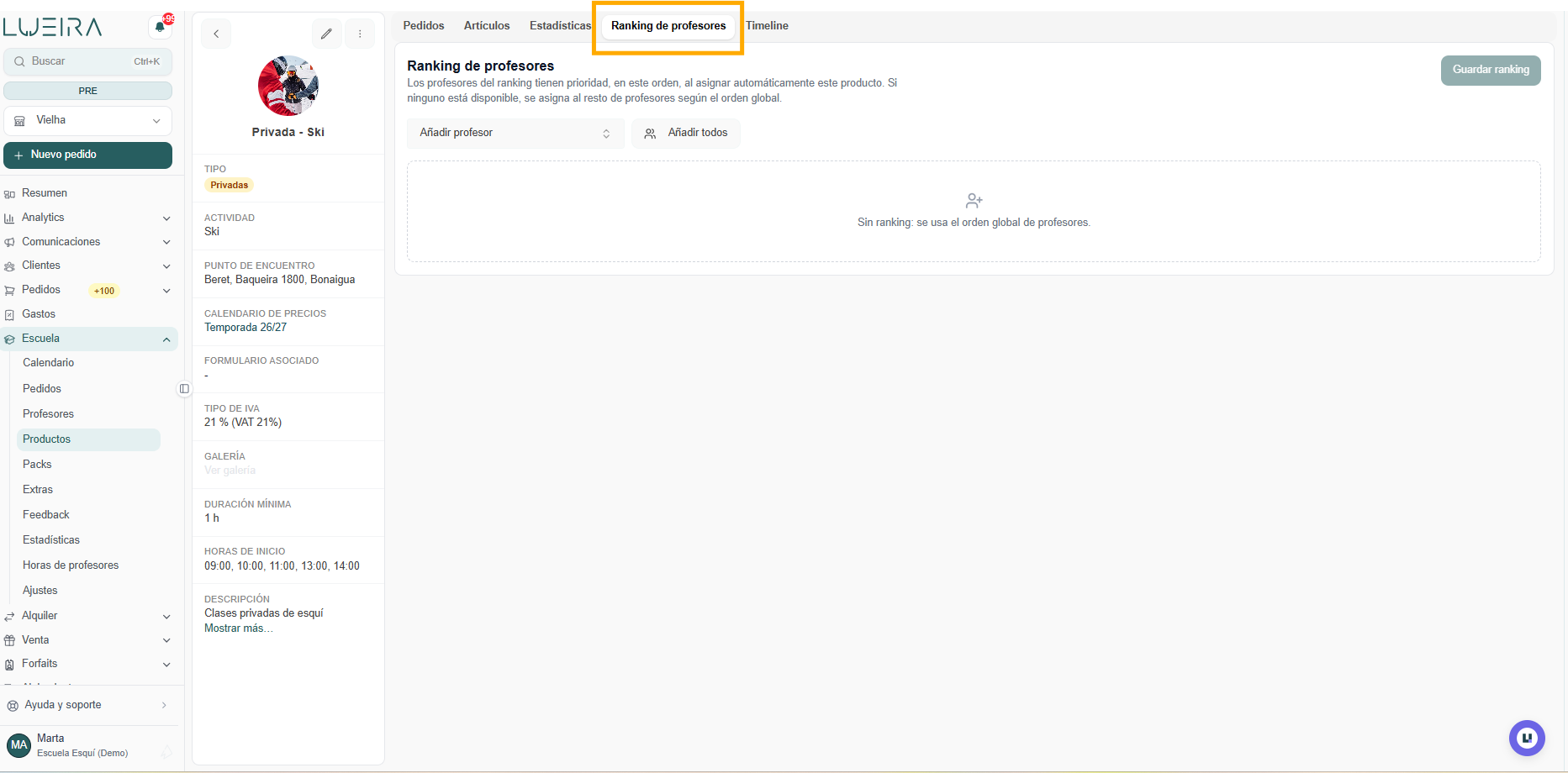
If the product does not have a ranking set up yet, you will see the message "No ranking: the global teachers order is used."
To create the ranking:
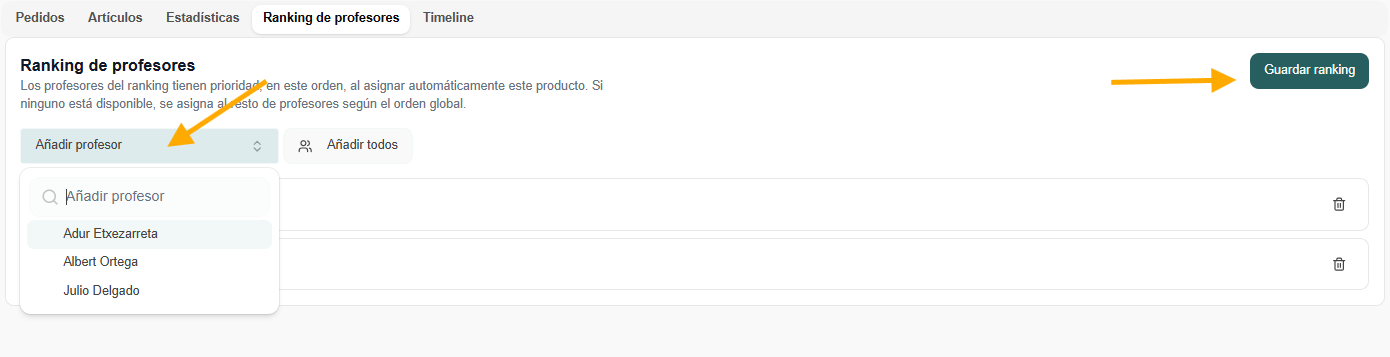
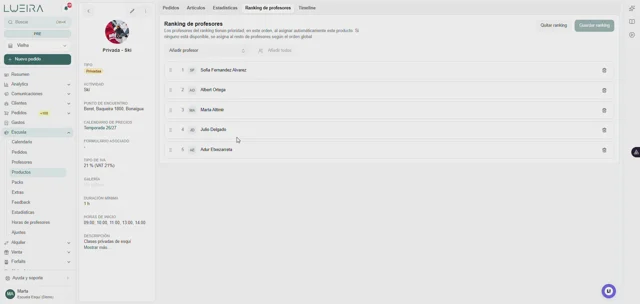
Use the "Add teacher" search box to add teachers one by one, or the "Add all" button to include in one go all those who are not yet in the ranking.
Each teacher added appears in a list with their position. Drag the rows to reorder them: the order of the list is the assignment priority order.
You can remove a specific teacher from the ranking with the delete button on their row, without affecting the rest.
When you finish, click "Save ranking".
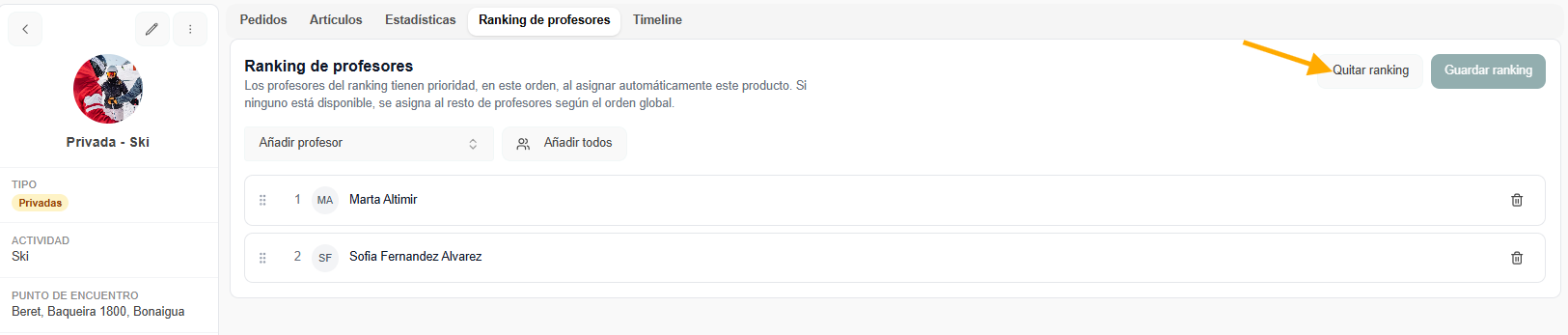
If at any point you want the product to go back to using the global order, click "Remove ranking": the entire ranking for that product is deleted (no teacher is deleted, only the specific order).
2. How it affects class assignment
When a product has a ranking set up, Lueira uses it as the priority order when deciding which teacher to assign in the classes of that product, instead of the global teachers order. If the product has no ranking, the global order continues to be used, just like in the rest of the products.
The availability rules do not change: only teachers who are actually free and compatible with the session are offered or assigned automatically.
You can review how availability and automatic assignment work in group products in 📘 Assigning instructors or guides in group products.
3. Add a new teacher directly to existing rankings
When creating a new teacher, if you already have any product with a ranking set up, you will see in the creation form a "Rankings by product" block with one row for each product that has a ranking:
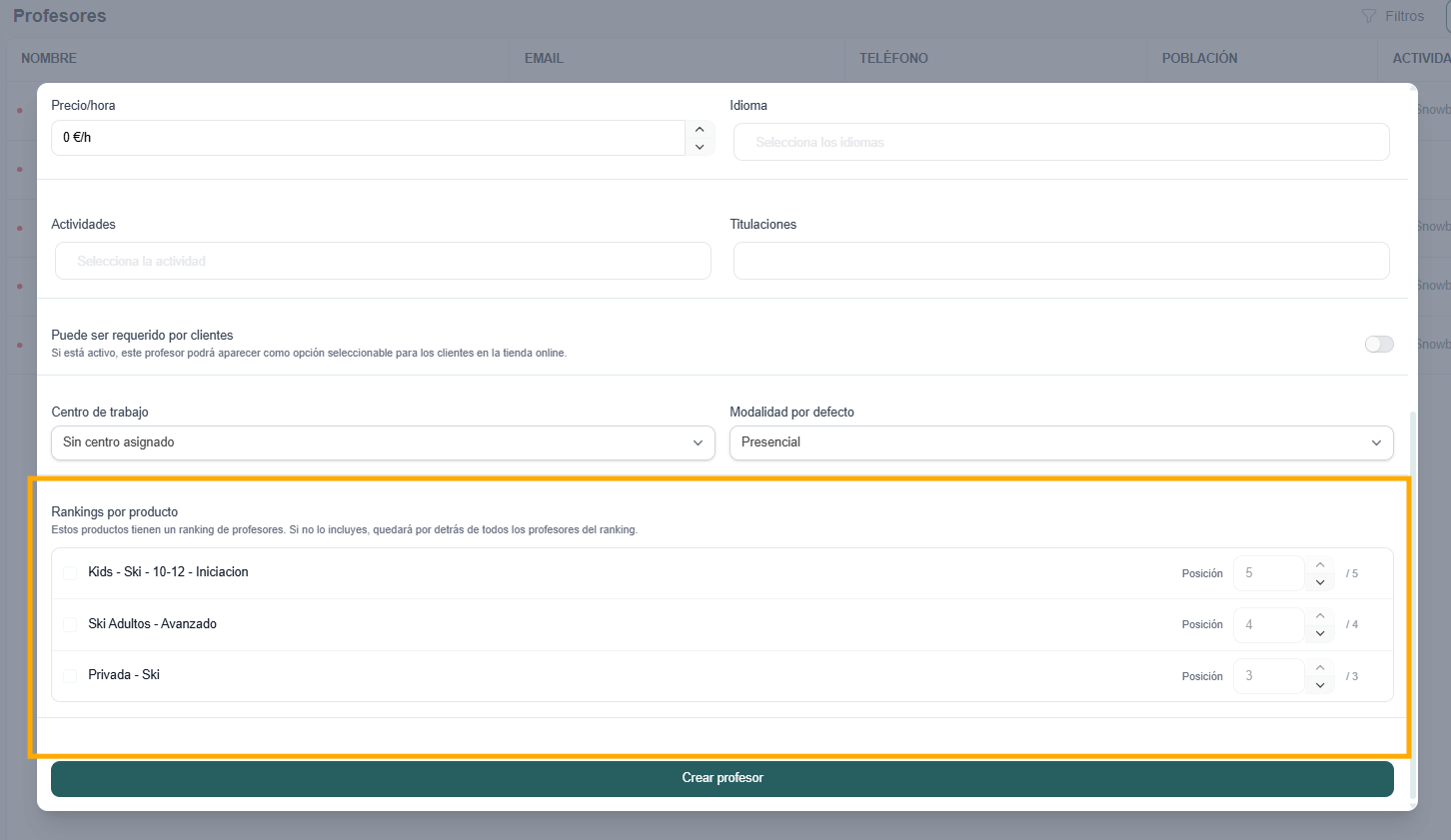
Tick the checkbox of the product in which you want to include the new teacher.
Enter the position where you want to place them in that ranking (by default, the last position is suggested).
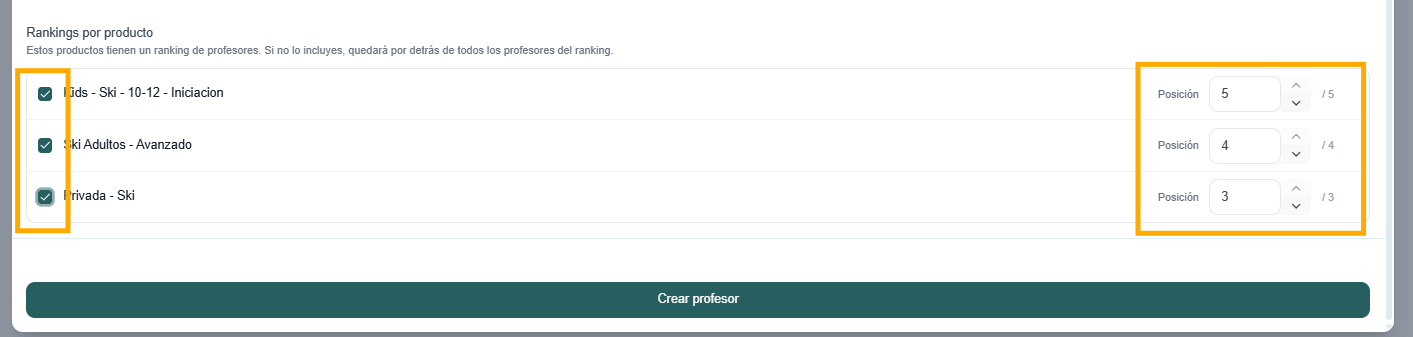
This way you can register an teacher and place them in the priority order of several products at once, without having to go into each product afterwards.
4. Notice for teachers without an assigned ranking
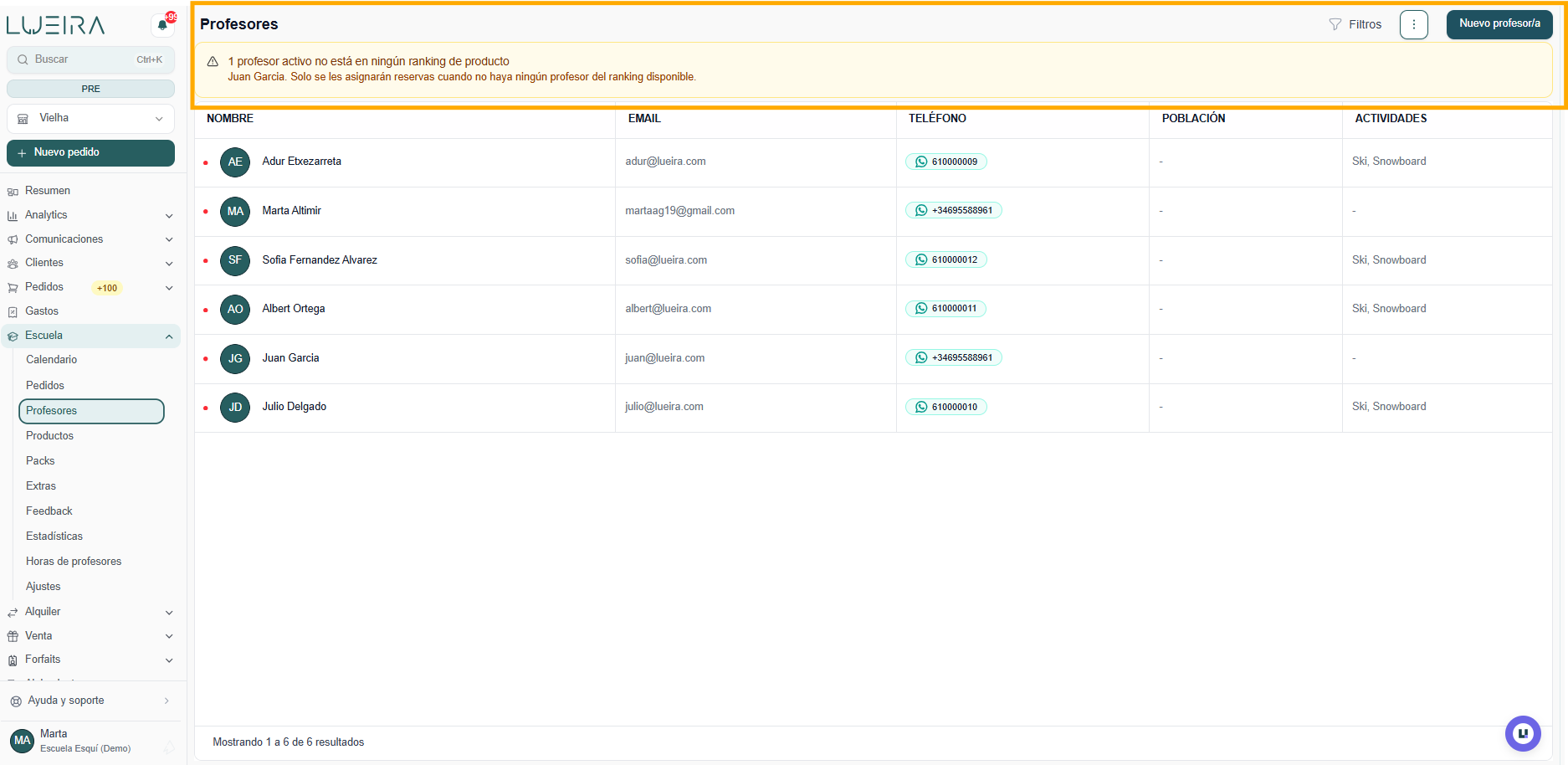
As soon as you have at least one product with a ranking set up, in the School → Teachers list you will see a notice if there are active teachers who are not included in any ranking, so you can check whether they should be part of one.
Related articles
Managing instructors in Lueira — how to create teachers and set the global order.
Assigning instructors or guides in group products — self-assignment and availability in group products.
If you have any questions, do not hesitate to contact the Lueira Support team!
Videos about this guide
Related guides
- School navigationHere you will find everything the School section offers
- Which product type do I need? Group, private, pack, voucher or multi-day courseGuide to choosing the right product for what you sell: private lessons (price per hour or rates), several sessions priced by number of sessions, fixed dates, hour voucher, multi-day course or a single student with a group schedule.
- Add School productsComplete guide to creating and configuring private and group products in the School section: form fields, session availability and creating sessions in the calendar.
- Product sheet: Data, Translations, Settings, Extras and Related ProductsReference guide to the tabs of the product creation/editing form (private, group, rental or sale): what each one contains and links to the specific guides.
- How do I set up a new season?We show you how to set up a new ski season in Lueira
- How can I set up the new season of my ski school in LueiraWe show you how to set up a new ski season in Lueira