

Manage Check-in form submissions
How the statuses of a Check-in submission work and how to invalidate and resend a form so the participant can fill it in again.
On this page
Manage Check-in form submissions
Check-in forms are sent to the customer after purchase so they fill them in before the activity. This guide explains how to manage those submissions once they have been sent: their statuses, the submission history, and how to invalidate and resend a form when the participant has filled it in with incorrect data.
To create and configure forms, and to learn how Check-in forms are sent (email, link or WhatsApp), see Product forms.
To learn where and how to view the answers already filled in, see View form answers.
Index
1. Submission statuses and history
Each participant has a status in their Check-in form depending on what they have done with it:
Pending → the participant has not filled in the form yet (or it has just been invalidated and they can fill it in again from scratch).
Invalidated (grey badge) → a previous answer that has been invalidated. It is not deleted: it is kept as a reference alongside the rest of the participant's submission history.
All of a participant's submissions are recorded in their submission history, so you can always see the original answer even if it has been invalidated and filled in again.
Reusing the answer across bookings
If the Check-in form has an expiry configured, the answer a participant completes is automatically reused in their later bookings as long as it is still valid, so they do not have to fill it in again on every purchase. When the answer expires, on their next booking it goes back to Pending and they fill it in again. The days of validity (or that it never expires) are configured in the form itself → Product forms.
2. Invalidate and resend a Check-in form
If a participant has filled in the Check-in form with incorrect or incomplete data, you can invalidate it so that it is left blank and the participant can fill it in again, without losing the history of the previous answer.
How to do it
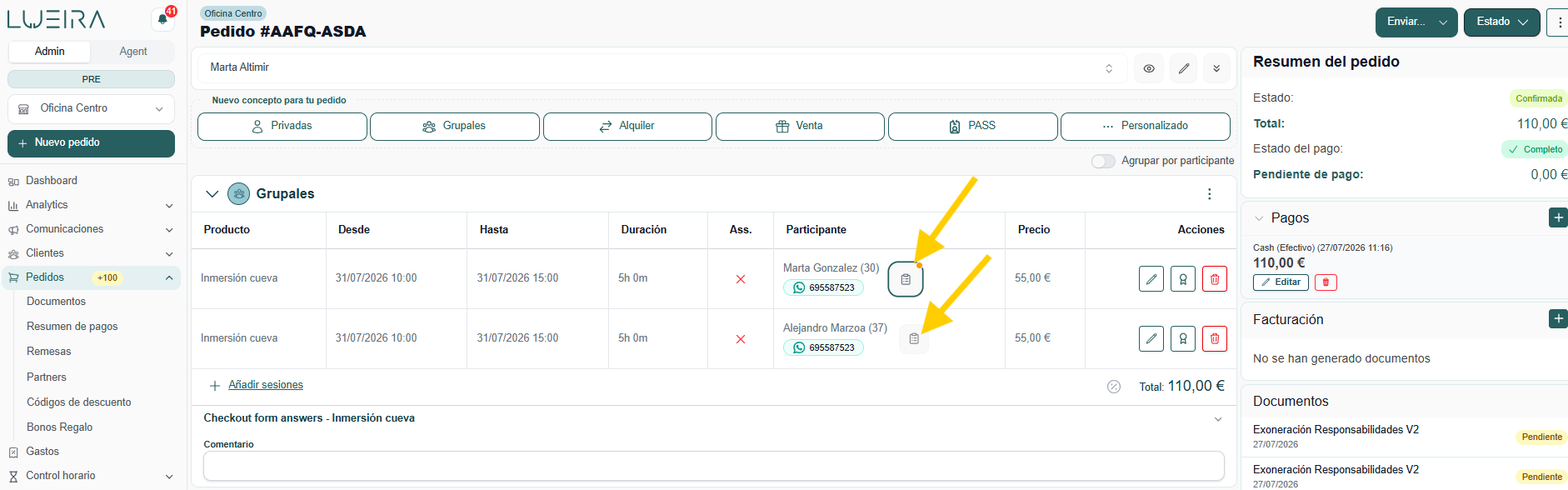
Open the answers of that participant's Check-in form (from the participant's profile, the order detail or the session's "Forms" matrix view).
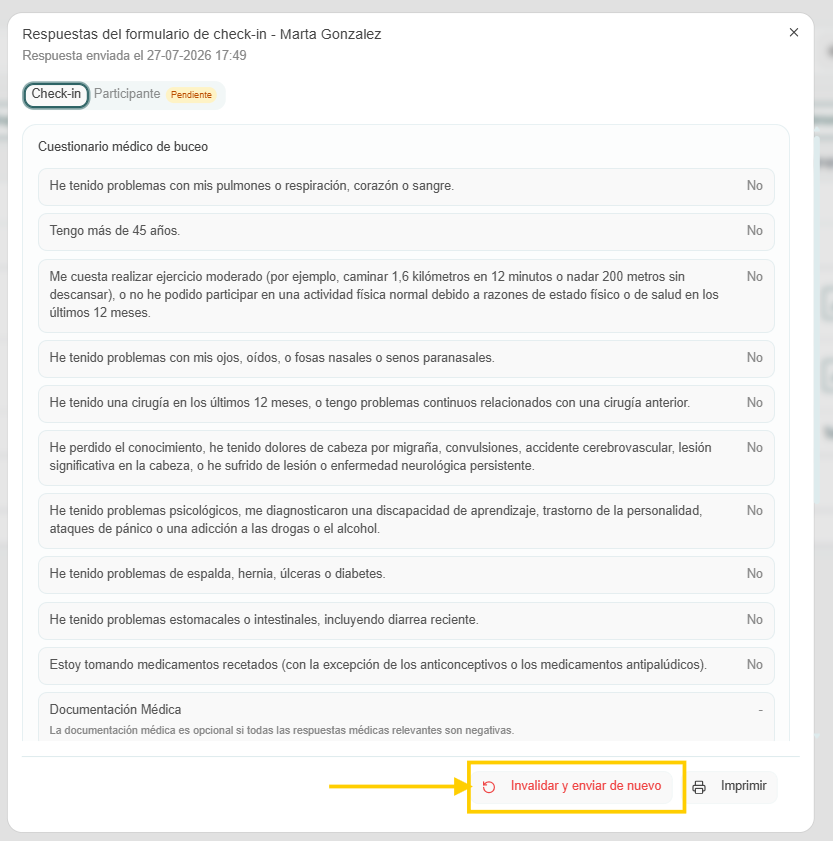
At the bottom of the answers modal, click "Invalidate and send again".
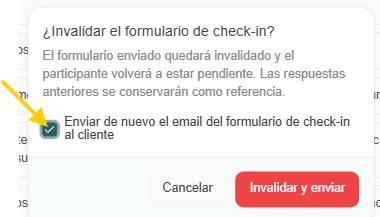
Confirm in the modal that opens. The "Send the check-in form email to the customer again" checkbox is ticked by default: if you leave it ticked, the email with the Check-in form link is automatically resent to the customer (the confirm button changes to "Invalidate and send"). If you untick it, the form is invalidated but no email is sent — useful if you prefer to share the link yourself (copy link or WhatsApp); in that case the button just says "Invalidate".
When you confirm:
The participant goes back to the Pending status and can fill in the form from scratch, with no previous answer.
The previous answer is not deleted: it is kept with the Invalidated status (grey badge), visible alongside the rest of that participant's submission history, as a reference.
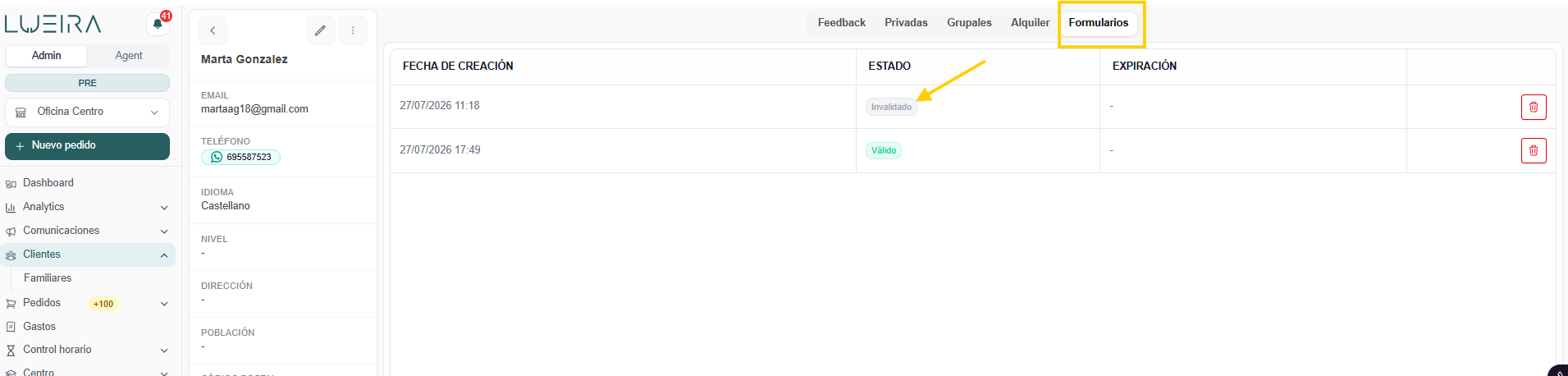
The Check-in link does not change: it is the same link shared by all the participants of the order, so there is no need to generate or resend a different link.
⚠️ This action is only available for the Check-in form; it does not apply to Check-out or Participant forms.
📘 To view the answers once they have been filled in, see View form answers. To create and configure forms, see Product forms.
3. Frequently asked questions
3. Frequently asked questions
I created the order from the panel and the customer did not receive the Check-in form. Is it sent automatically?
For Online Shop orders, sending is automatic. For orders you create yourself from the panel, send it from the order itself with the Send button (top right) → Forms. If the option appears disabled, check that the product has a Check-in form linked and that the booking has its participants.
The customer already filled in the form and made a mistake. How do I get them to redo it?
If it is the Check-in form, invalidate it and resend it as explained in 2. Invalidate and resend a Check-in form. For other forms (Check-out, Participant), this option does not exist: contact support.
When I click "Invalidate and send" an error message appears
This is a known issue that we have already reported: in the cases you have told us about, the form was in fact invalidated even though the error appeared. Reload the page and check the participant's status: if it shows Pending and the previous answer as Invalidated, it is done. If after reloading it still has not changed, or the customer does not receive the email, write to us stating the order reference.
When I try to send the form, Lueira asks me to "add as relative"
The form is associated with each participant, and for that the participant has to exist as a relative of the customer who made the booking. If the participants in the booking only have a name, turn them into relatives of the customer from the order and send the form again. If you do not see the option or you have doubts about a specific order, contact support stating the order reference.
I translated the form, but the customer receives it in Spanish
The language is not chosen by the customer when opening the link: for Online Shop orders the language they booked in is used, and for orders created from the panel, the language saved in the customer's profile (if they have none, your account's default language). Check the language in the customer's profile before sending. Translations are edited in Settings → Product forms, with the Translate section button of each section. More detail in Product forms (sections 5 and 8).
Related guides
- School navigationHere you will find everything the School section offers
- Which product type do I need? Group, private, pack, voucher or multi-day courseGuide to choosing the right product for what you sell: private lessons (price per hour or rates), several sessions priced by number of sessions, fixed dates, hour voucher, multi-day course or a single student with a group schedule.
- Add School productsComplete guide to creating and configuring private and group products in the School section: form fields, session availability and creating sessions in the calendar.
- Product sheet: Data, Translations, Settings, Extras and Related ProductsReference guide to the tabs of the product creation/editing form (private, group, rental or sale): what each one contains and links to the specific guides.
- How do I set up a new season?We show you how to set up a new ski season in Lueira
- How can I set up the new season of my ski school in LueiraWe show you how to set up a new ski season in Lueira