

How do I set up the new season in my Rental store?
We show you how to set up a new ski season in Lueira
RENTAL AND SALES
If you have a rental and sales section, the most important thing to review is the products entered in Lueira: the models, the variations and the units of each variation, so that the current stock you manage matches what is shown in Lueira.
 Cómo preparar la nueva temporada en la tienda de alquiler
If you want to review these parameters, go to Rental → Products and you can see all the products you have entered in Lueira.
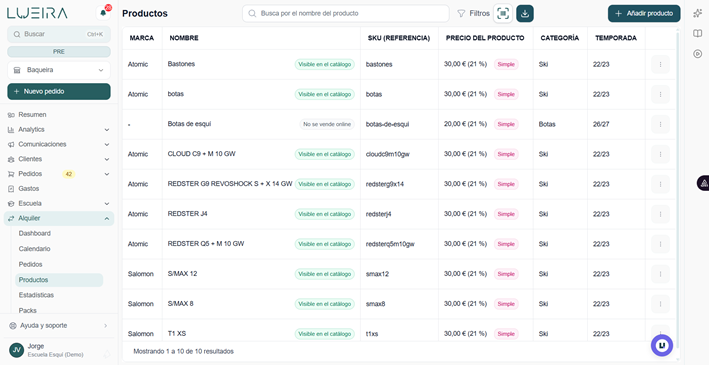
It is important that you review both the variations and the items included in each product and add this season's new stock.
Variations: Model and size of each product.
Items: Number of units of each model and size of product.
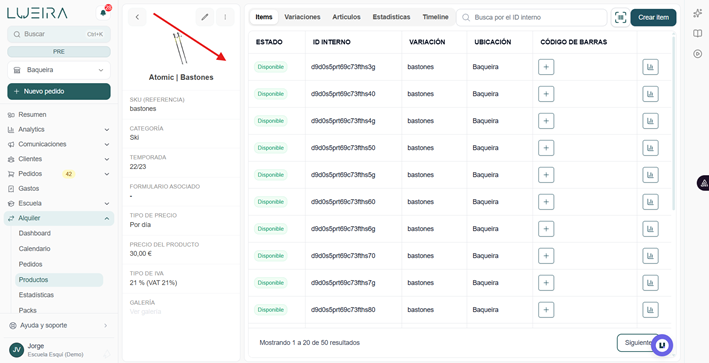
If you want to add a new product you can do so from Rental → Products → Add product; likewise, if you want to add a new variation you can do so from Rental → Products → Variations → Create Variation
To add new variations and items, do it from these sections:


Finally, if you have updated prices, review them in Rental → Settings → Pricing.
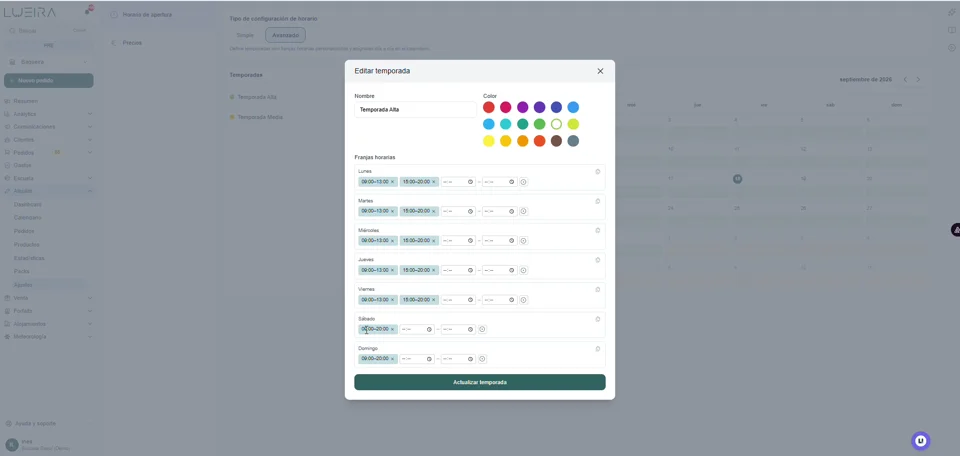
Setting up the rental opening hours
This season, rentals are managed differently when it comes to setting the delivery times and return times of a product.
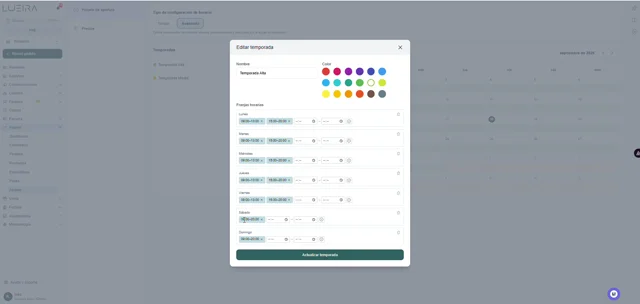
In Rental > Settings you now have the option to set up two types of calendar: a simple calendar -used in past seasons- where you can set an opening and closing time during which customers can make bookings.
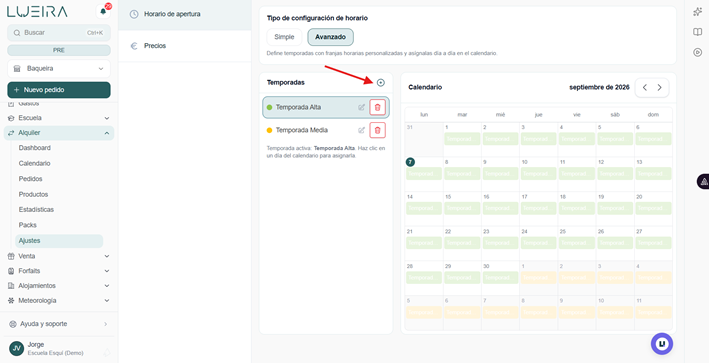
In case the simple format does not suit the way you work with rentals, this season we are adding the advanced calendar, where you can set split schedules, days of the week on which rental is not operating, and date ranges that allow you to set different hours within the same season.
In the following article you will find all the information to set up the advanced rental calendar.
Setting up rental pricing
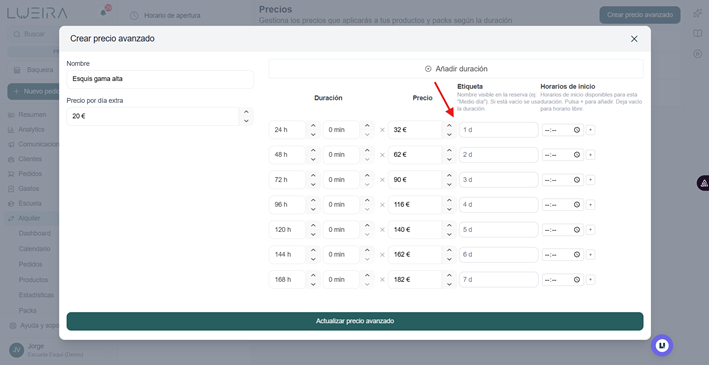
This season, rental pricing has also changed in the way customers interact when booking equipment in the Lueira online store.
You can now set names for the time slots in which they can book and set pickup times to display in the online store. All these times will be limited to within the rental opening hours, and any slot that falls outside those hours will not be shown.
In this article you will find all the details on setting up rental pricing.
Finally, we recommend that you review the Settings section and update anything that has changed from one season to the next.
First, go to Settings → Seasons and add the season coming up this year.
In Settings → Payments check that you have the Redsys or Lueira Pay payment gateway active for the online store.
In Settings → Languages select the languages in which you want translations to be made or to communicate with customers through emails.
For any questions or issues that come up, we are fully at your disposal at the Lueira support team!
Have a great season 😊
Videos about this guide
Related guides
- Add and manage rental productsHow to create rental products, set up their variations and items, manage how they behave in the online store, and how customers can book several units at once.
- Add Packs to rentalIn this section we will show you how to create product packs
- Configure a rental packHow to create a pack, assign it a pricing schema and configure its visibility in the online store and the catalog.
- Add and configure product groups in a packHow to add the product groups that make up a pack (skis, boots…), their form and the visibility of their variations in the online store.
- How do I delete a barcode from a rental item?How to remove the barcode from a rental item, and how that differs from deleting the item or the product variation.
- Forms in rental packs: what is asked and how to avoid repeated questionsA rental pack can ask for a participant form, a check-in form and a form for each element. Here you can see which is which and why identical questions are not repeated.