

Add and manage rental products
How to create rental products, set up their variations and items, manage how they behave in the online store, and how customers can book several units at once.
On this page
- Add and manage rental products
- Structure of rental products
- Create a new product
- Details tab
- Translations tab
- Settings tab
- Extras tab
- Variations
- Create a variation
- Items
- Create an item
- Assign a barcode
- Acquisition price
- Adding stock, item statuses and barcodes
- Add stock (items) to a product
- Item statuses
- Repeated barcodes and infinite stock
Add and manage rental products
Structure of rental products
 Crear productos de alquiler
In Lueira, rental products are organized in three levels:
Product — the generic model (e.g., "MTB Bike 22"). It defines the name, description, price and general settings.
Variations — the types or sizes within a product (e.g., "Size S", "Red color", "1.50m > 2.00m"). They let you tell apart units with different characteristics without having to create a new product for each variant.
Items — the actual physical units (e.g., bike number 3 in the warehouse). Each item has a unique internal ID and can have a barcode associated with it.
To access the catalog go to Rental > Products.
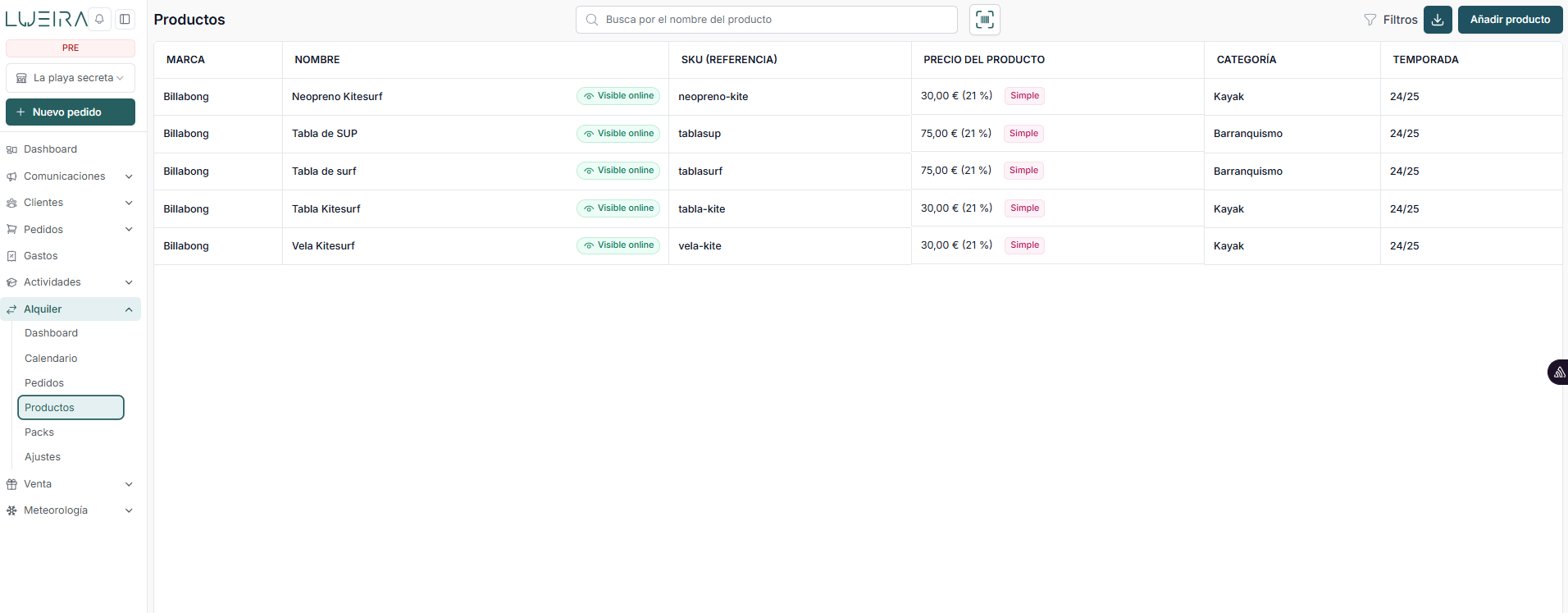
Create a new product
Click Add product (top right). The form has four tabs: Details, Translations, Settings and Extras.
Details tab
Here you define the product's basic information:
Name — visible name of the product in the panel and in the online store.
SKU (Reference) — internal reference; it is generated automatically from the name, although you can edit it.
Brand — the product's brand (optional).
Category — the rental category it belongs to (optional).
Season — season associated with the product (optional).
Description — long description of the product. You have the Generate with Lueira Intelligence and Translate with Lueira Intelligence buttons to assist you with AI.
Image — featured image. The first image in the gallery is used as the cover.
Gallery — additional product images.
Price section
The price can be set in Simple mode (a single price) or Advanced mode (rates by tiers or periods). See the guide Rental product pricing for all the options.
Price type — pricing period: per day, per hour, etc.
Price — base amount of the product.
VAT type — applicable tax rate (VAT 21%, VAT 10%, exempt, etc.).
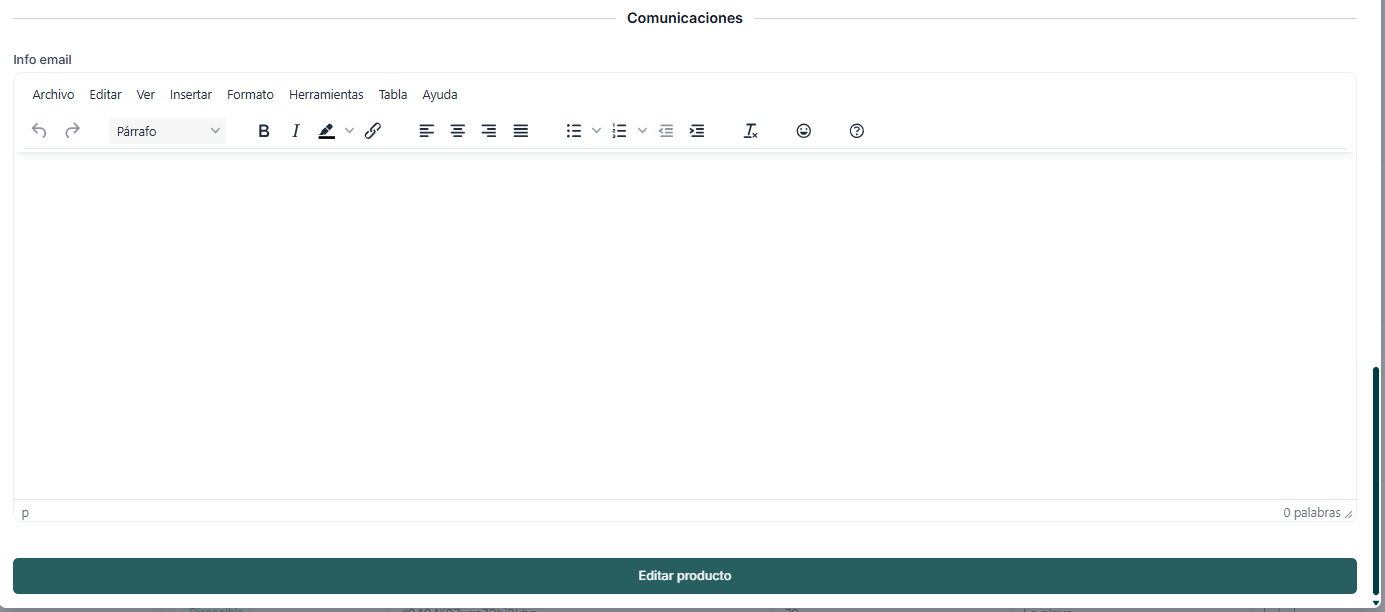
Communications section
The Email info field lets you add custom text that will be included in the booking confirmation emails for this product.
Translations tab
It lets you add the product's name and description in other languages. Click Add translation, select the language and enter the translated texts. Customers will see the corresponding translation according to their session language in the online store.
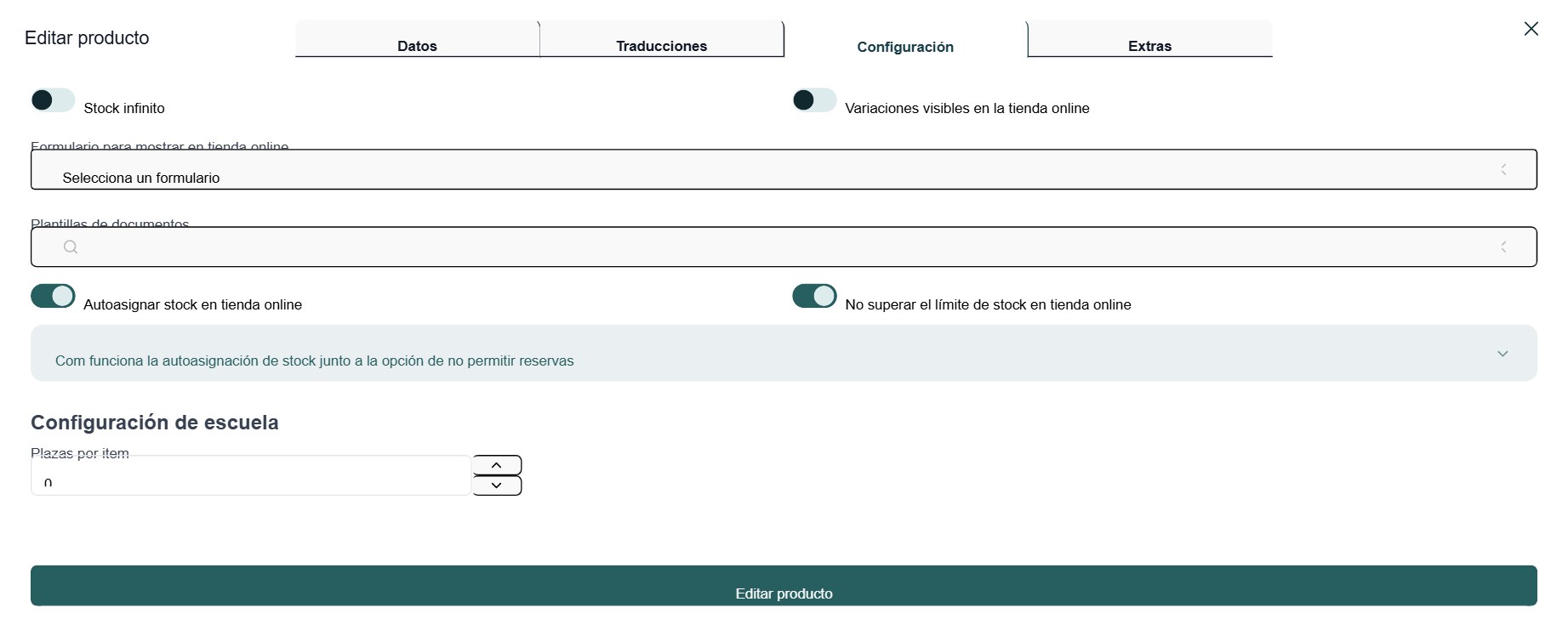
Settings tab
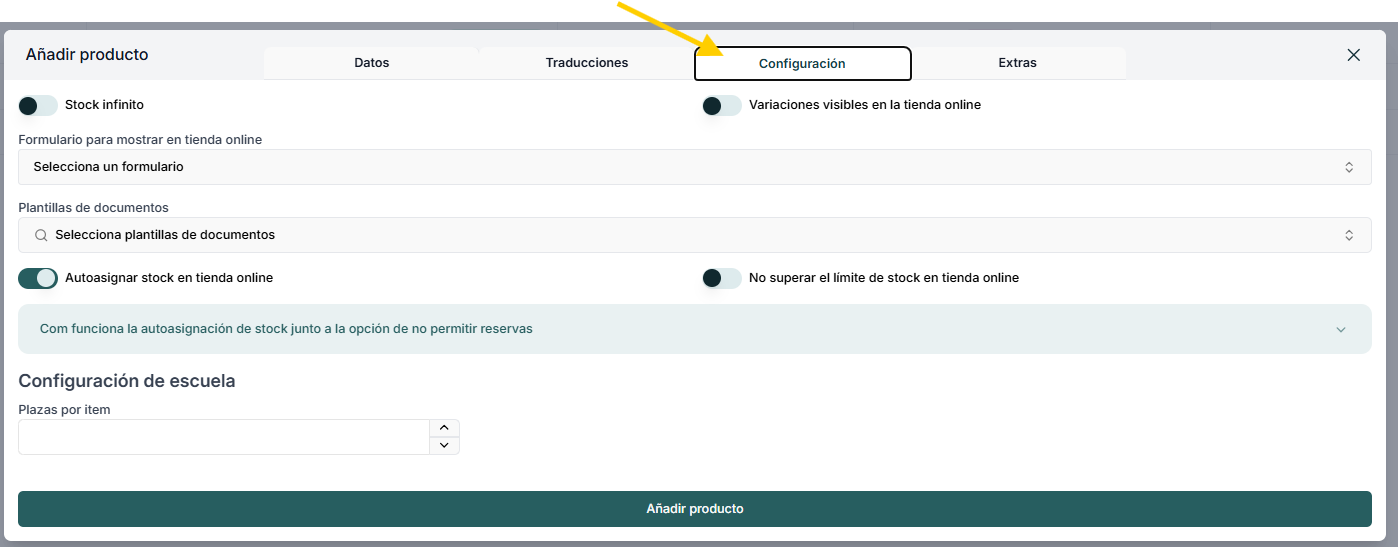
It defines the product's behavior regarding stock and the online store:
Infinite stock — if enabled, the product is never shown as sold out in the online store, regardless of the number of available items.
Variations visible in the online store — if enabled, the customer will be able to choose a specific variation (size, color, etc.) when booking in the online store. If disabled, the system will automatically assign the first available variation without the customer seeing it.
Form to show in online store — additional data form that will be requested from the customer when booking this product (e.g., foot size, weight).
Document templates — templates (contracts, delivery notes) that will be generated automatically in the orders for this product.
Auto-assign stock in online store — if enabled, Lueira automatically assigns an available item when an online booking is generated. If disabled, the assignment must be done manually from the order.
Do not exceed the stock limit in online store — if enabled, new online bookings will not be accepted when there are no free items, avoiding overbooking.
School settings
Seats per item — number of people each physical item can accommodate. Useful for shared products such as double kayaks, tandems or similar.
Extras tab
It lets you associate extra products (accessories, add-ons) that will be offered to the customer together with this product during the booking. Use the search box to find and link the products you want.
Variations
Variations are the different types or sizes of the same product. For example:
Product: Atomic Redster 9G ski
Variations: Red 165 cm · Red 172 cm · Red 177 cm · Blue 165 cm · Blue 172 cm
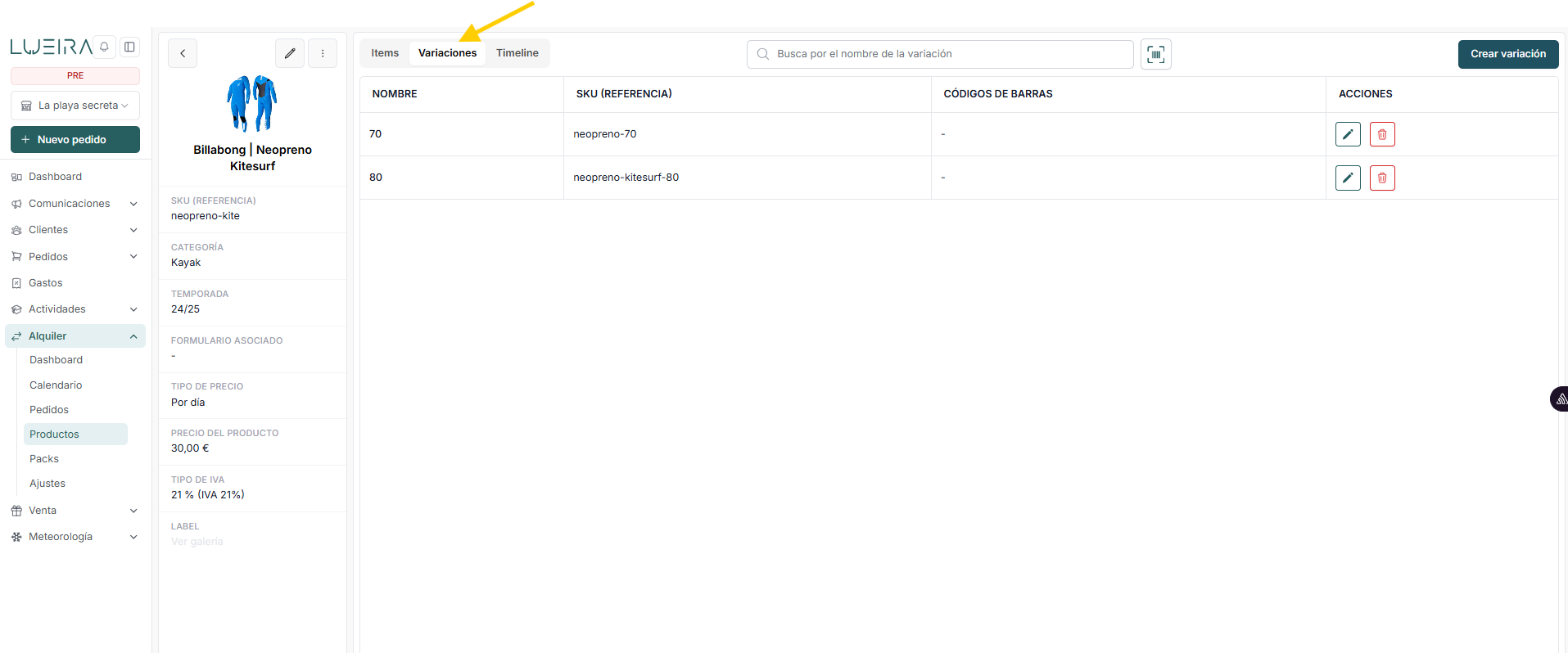
To manage a product's variations, open it and click the Variations tab. You will see the list with the name, SKU and barcodes of each variation.
Create a variation
Click Create variation. The form has three tabs:
Details — variation name and SKU (reference).
Translations — the variation's name in other languages.
Settings — infinite stock specific to this variation, and seats per item (if they differ from the product's settings).
Items
Items are the physical units of the product. Each item has a unique internal ID and can have a barcode for quick identification at the counter.
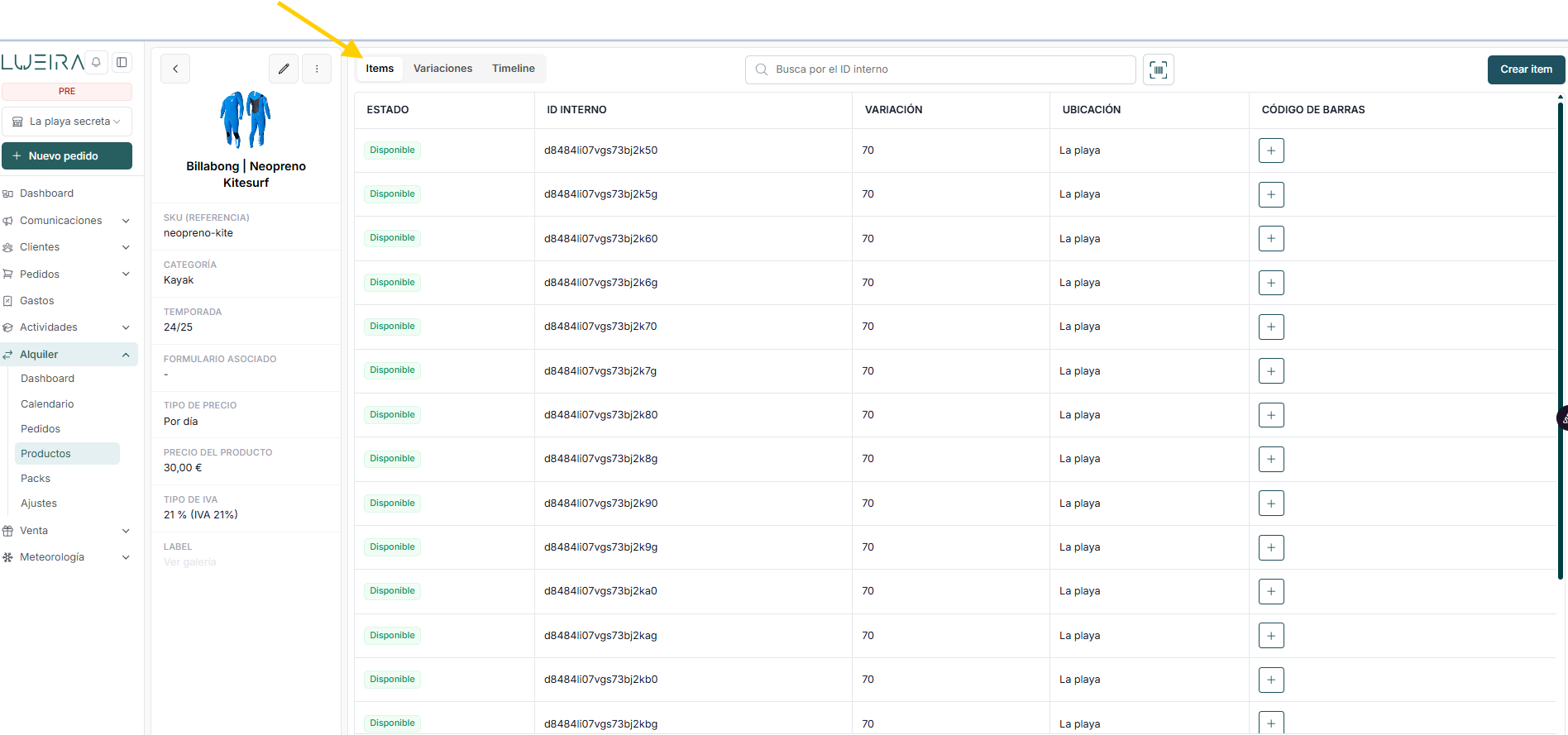
To manage a product's items, open it and click the Items tab. You will see the list with the status of each unit (Available, Reserved…), the assigned variation, the location and the barcode.
Create an item
Click Create item and indicate the variation it belongs to (if the product has variations) and the location where it is stored.
Assign a barcode

Click the + button in the "Barcode" column next to the corresponding item. You can scan the code with a barcode reader or enter it manually. The barcode is what physically identifies each unit and is used to manage check-outs and returns from the point of sale.
Acquisition price
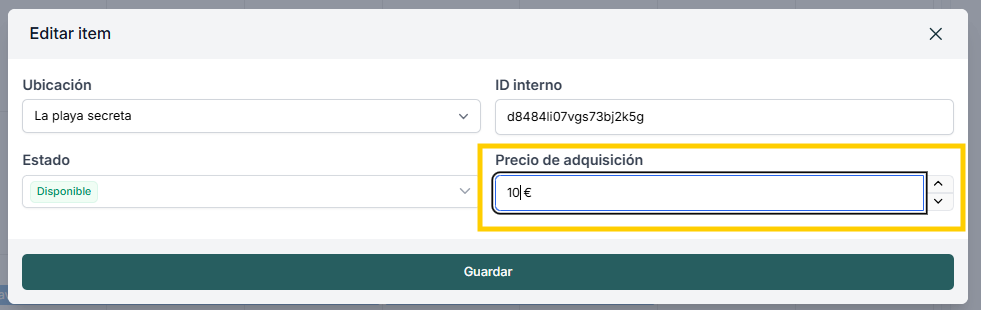
If you open a specific item and click the pencil (top right), you can record that unit's acquisition price. Lueira will use this data to calculate the product's profitability.
Adding stock, item statuses and barcodes
Add stock (items) to a product
The product by itself has no stock: the stock is the items. To add it:
Open the product and, if you work with sizes or models, first create the variations in the Variations tab.
Go to the Items tab and press Create item.
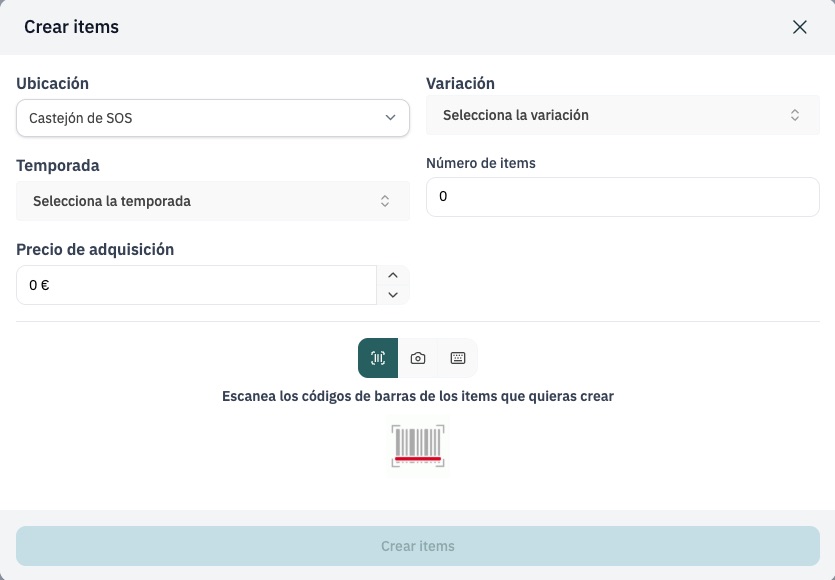
In the Create items window, indicate the Location, the Variation, the Season (optional), the Number of items you want to create and, if you wish, the Acquisition price.
If your units have barcodes, you can scan them in the same window (with a reader, with the camera or by typing them) to create the items with their code.
Press Create items. Repeat the process for each variation (for example, once per size).
💡 If you buy new units of a model you already have and the rental price is the same, add them as items to the existing product; you can indicate the season in the Season field to tell them apart. If the rental price is different, create a new product.
Item statuses
When you open an item you can change its Status between:
Available: the unit can be rented.
Under maintenance: the unit is temporarily out of use (repair, inspection...).
Sold: the unit is no longer part of your rental stock.
There is no "Lost" status. If a unit is lost and will not come back, the closest option is Sold; record the reason in the comment of the corresponding order.
Repeated barcodes and infinite stock
Each barcode identifies a single unit, so you cannot assign the same code to several items. If you have equipment without an individual code (for example, helmets or poles that share a code), ask Lueira support about the possibility of working with that product using infinite stock. Keep in mind that, with infinite stock, you lose the detail of which specific unit is rented and the rental calendar will not show that product.
📘 See also Rental Dashboard and calendar.
Videos about this guide
Related guides
- Add Packs to rentalIn this section we will show you how to create product packs
- Configure a rental packHow to create a pack, assign it a pricing schema and configure its visibility in the online store and the catalog.
- Add and configure product groups in a packHow to add the product groups that make up a pack (skis, boots…), their form and the visibility of their variations in the online store.
- How do I delete a barcode from a rental item?How to remove the barcode from a rental item, and how that differs from deleting the item or the product variation.
- Forms in rental packs: what is asked and how to avoid repeated questionsA rental pack can ask for a participant form, a check-in form and a form for each element. Here you can see which is which and why identical questions are not repeated.
- Rental SettingsThis section explains which settings affect rentals.