

Adding, delivering and returning rental orders
How to create a rental order, add the product (manually or by barcode) and make individual or bulk deliveries and returns.
On this page
Adding, delivering and returning rental orders
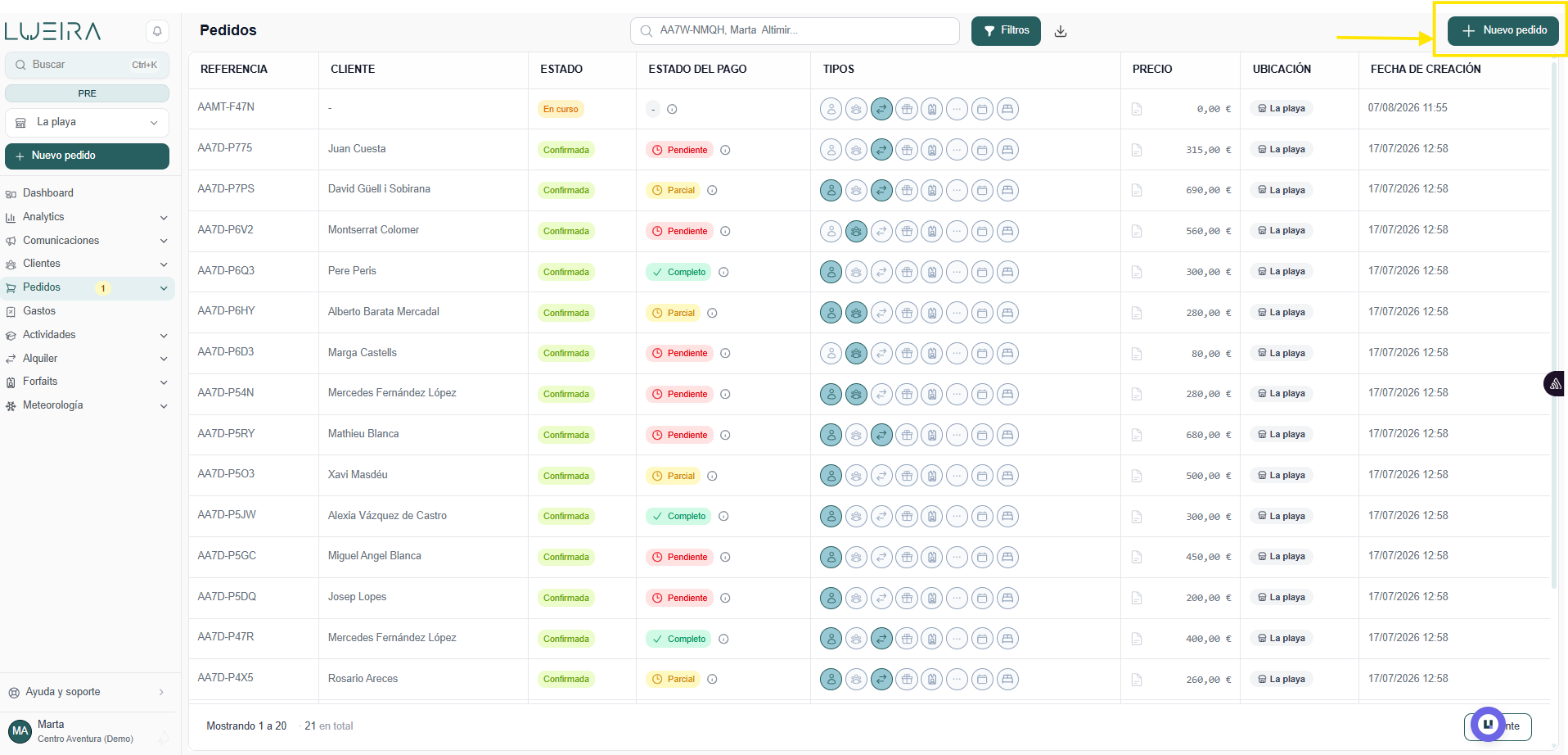
To add a rental order, go to Orders and press the "New order" button (top right, or the shortcut of the same name in the side menu). This creates an empty order and takes you straight to its page.
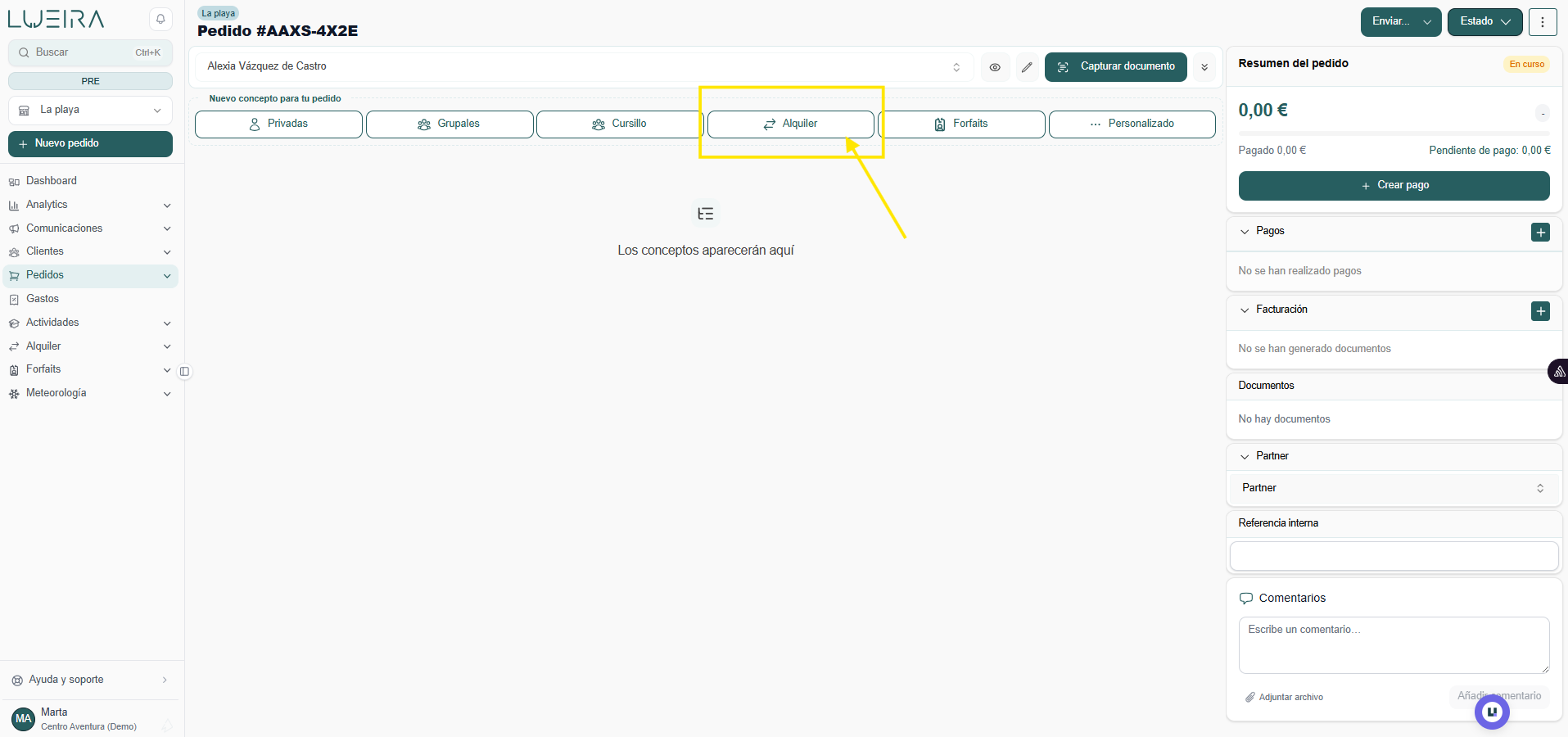
Inside the order page, in the row of item types, press "Rental" (it only appears if you have the Rental module enabled) to add a rental item to the order.
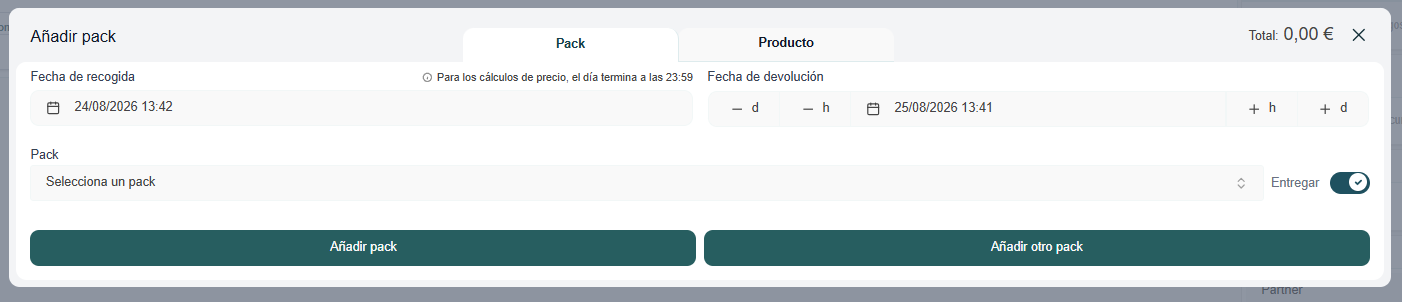
From there you can add the product's pickup and return date and time, the product itself and the customer who will take it. To add the product, you can search for it manually in the inventory or scan its barcode so that it is added to the order directly.
Once added, the order will also appear in the Rental Dashboard panel, in the Pickups or Deliveries column as appropriate.
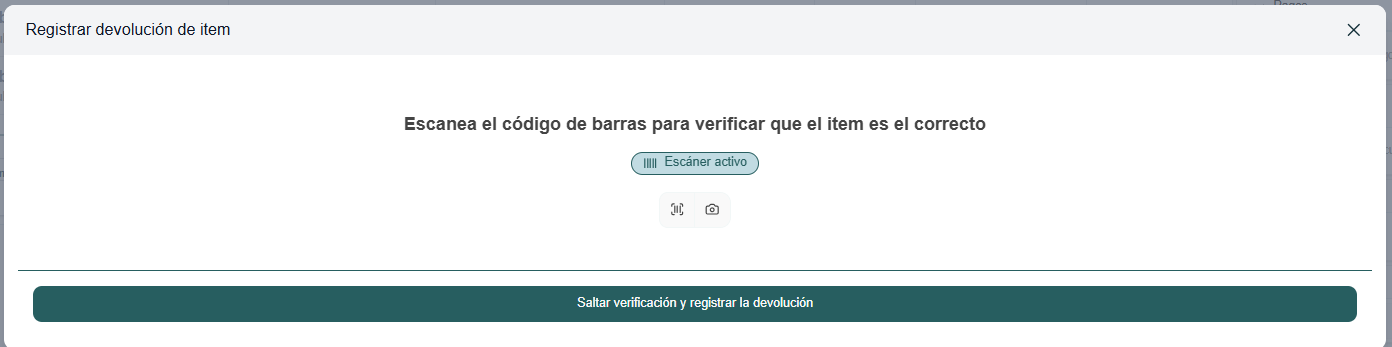
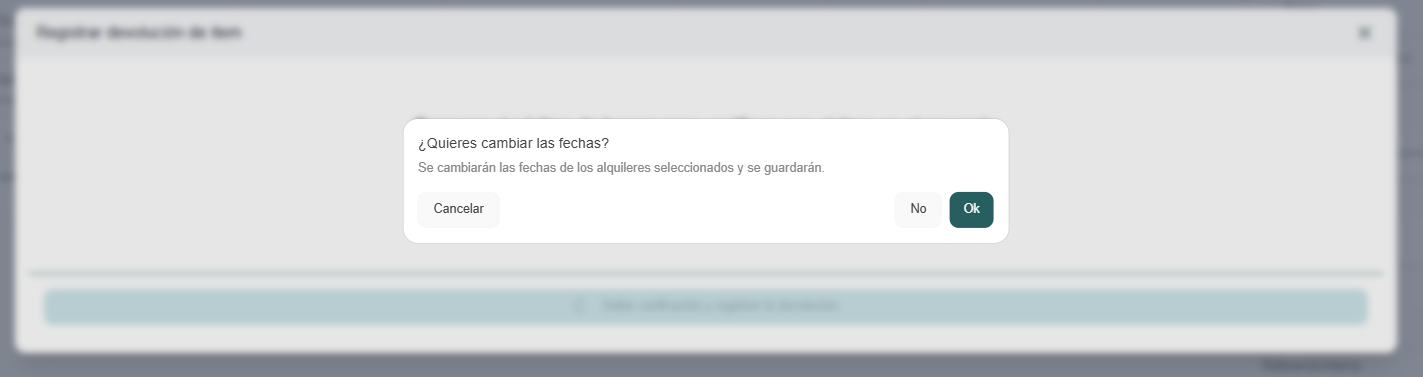
Inside the order, the bulk deliveries and returns button lets you register several items at once: it opens in two tabs, pending pickup and pending return, with all items checked by default (you can uncheck the ones you do not want). If the expected date is not today, Lueira will ask whether you want to update it to the current date (and, if you accept, whether you also want to recalculate the price); and if the item is registered at another location, it will ask whether you want to move it to the location you are working in.
If you have any questions, do not hesitate to contact the Lueira support team!
Automatic delivery, dates and using a tablet
Automatic delivery: when an item is marked as delivered
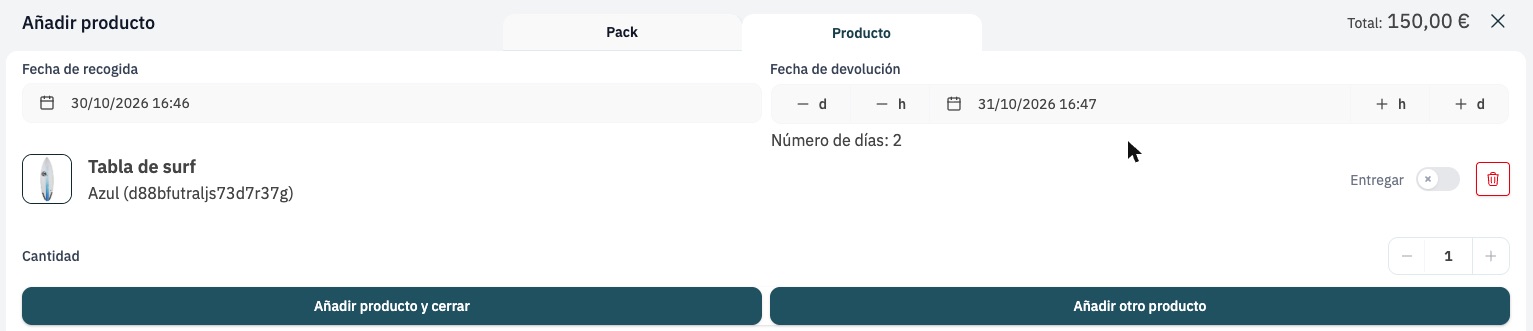
When you add a rental item, Lueira suggests the current moment as the pickup date and leaves the Deliver switch turned on: it understands that the customer takes the equipment at that moment, so you do not have to mark it as delivered item by item.
If you change the pickup date to another day (for example, when preparing an order for tomorrow), the Deliver switch turns off automatically and the item is added to the order but left pending delivery.
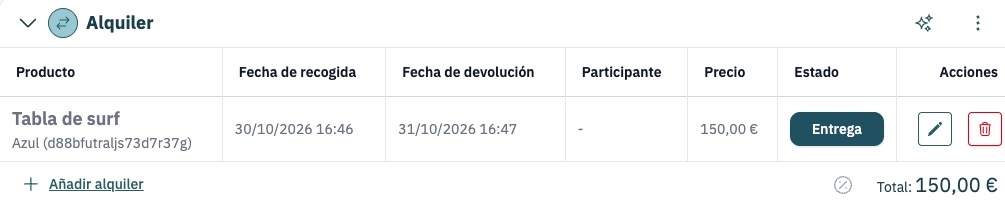
When the customer comes to pick up the equipment, press Deliver on the item's line or use the Bulk rental management button (stars icon, top right of the Rental block) to register all the pickups at once.
Pickup and return on the same day
From the Admin you can set the return on the same day as the pickup using the − d, − h, + h and + d buttons next to the return date. In that case Lueira counts it as 1 day. For price calculations, the day ends at 23:59.
If the online store does not let you choose the same pickup and return day, contact the Lueira support team.
Working from a tablet
Lueira works from the browser of any device, including a tablet. If you do not see the Deliver button or the bulk management button on the tablet, update the browser to the latest version or try another browser. If it still does not appear, send a screenshot to the Lueira support team.
📘 If you rent complete sets of equipment (skis, boots, helmet...), also see Adding a Rental Pack to an order.
Videos about this guide
Related guides
- Add and manage rental productsHow to create rental products, set up their variations and items, manage how they behave in the online store, and how customers can book several units at once.
- Add Packs to rentalIn this section we will show you how to create product packs
- Configure a rental packHow to create a pack, assign it a pricing schema and configure its visibility in the online store and the catalog.
- Add and configure product groups in a packHow to add the product groups that make up a pack (skis, boots…), their form and the visibility of their variations in the online store.
- How do I delete a barcode from a rental item?How to remove the barcode from a rental item, and how that differs from deleting the item or the product variation.
- Forms in rental packs: what is asked and how to avoid repeated questionsA rental pack can ask for a participant form, a check-in form and a form for each element. Here you can see which is which and why identical questions are not repeated.