

How medical forms work in Lueira | Dive Centers
Discover how medical forms work in Lueira
On this page
How medical forms work in Lueira | Dive Centers
On the Lueira platform we offer our customers the possibility of including medical forms in the purchase process of services or activities that require them.
To be able to configure the visibility of these forms in our Lueira account, we first have to ask the Lueira technical team to enable this option on our profile.
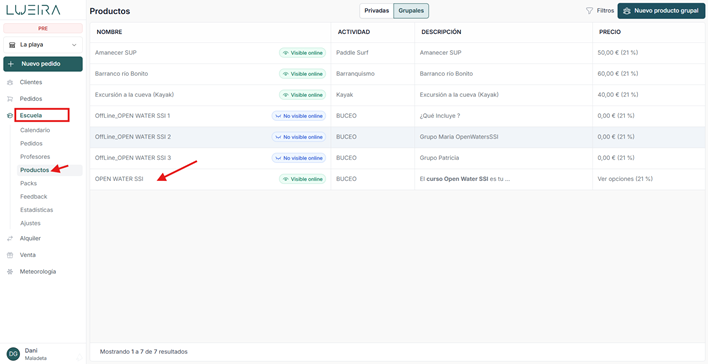
Once we have access, we have to enable the visibility setting for this form in the settings of the products where we want to make it visible. To do so, we go to the school section in the left side menu, in the products section, select the group product we are interested in, and click the edit button for this product, in the top right corner of the screen.
School> Products> Group> Product we want> Edit> Settings.
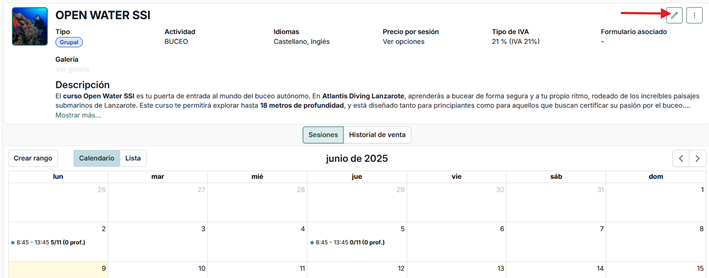
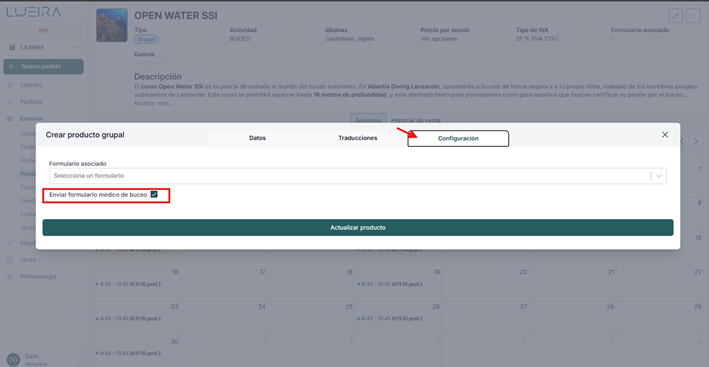
In the edit window that appears, we select the settings tab, where we can select the forms we want to add to the product and the option "Send diving medical form" appears. We must enable this checkbox to be able to send the medical form to the activity participants.
When making the booking, we must enter the names and details of all the participants who will take part in the activity. Each participant will have an associated form with a link that you must send via WhatsApp or email.
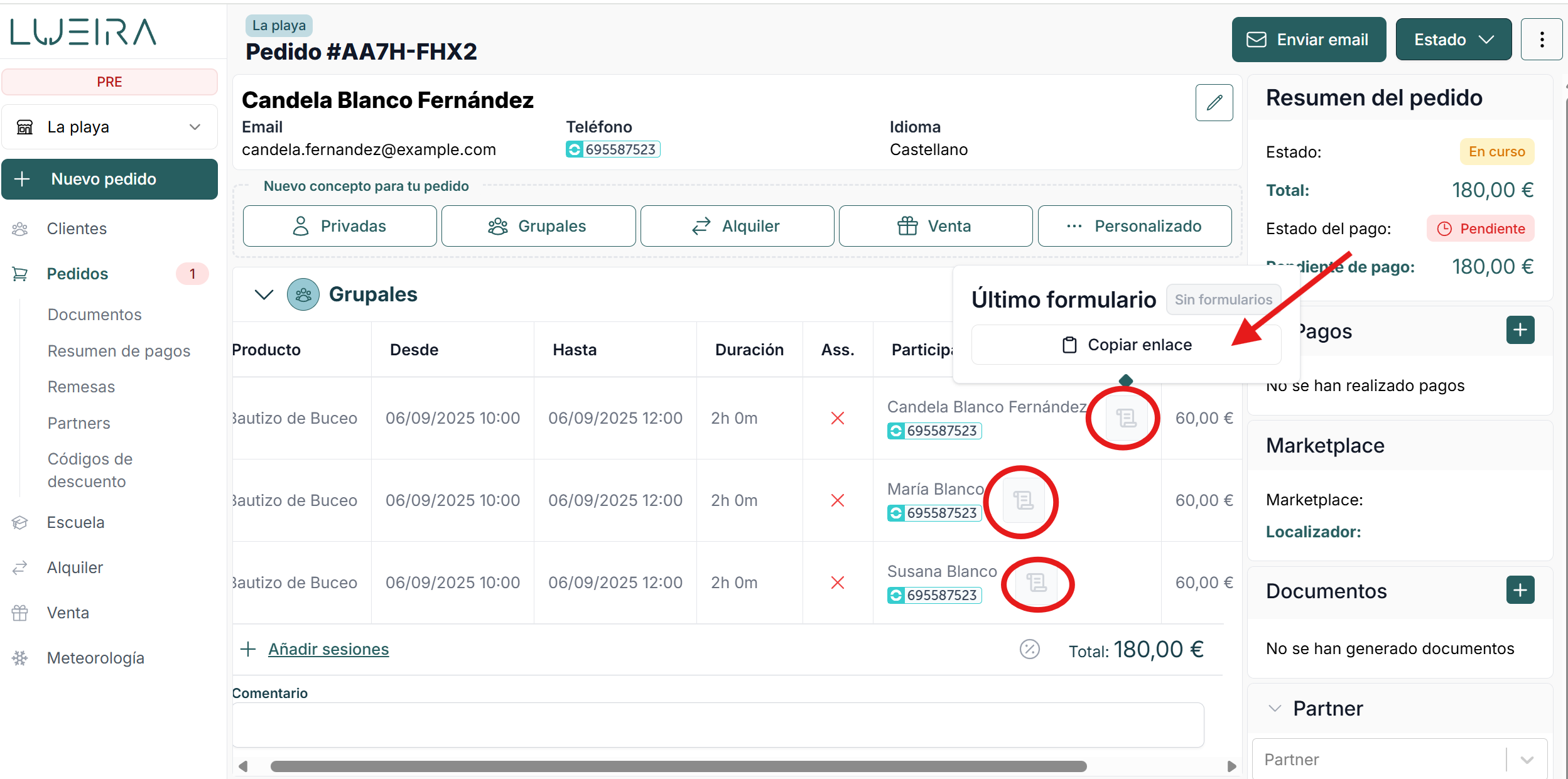
Each form has a specific URL, so that when the form is filled in, the information collected is automatically updated in the participant's record.
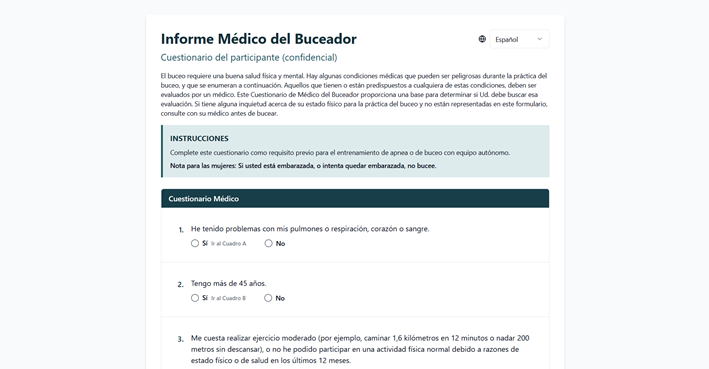
Form view: https://forms.lueira.com/diving/d138cingscpc73bk31kg
To send the forms we will use this button and copy the links for each person, and send them to the customer through the communication channel we prefer (email, WhatsApp, etc.).
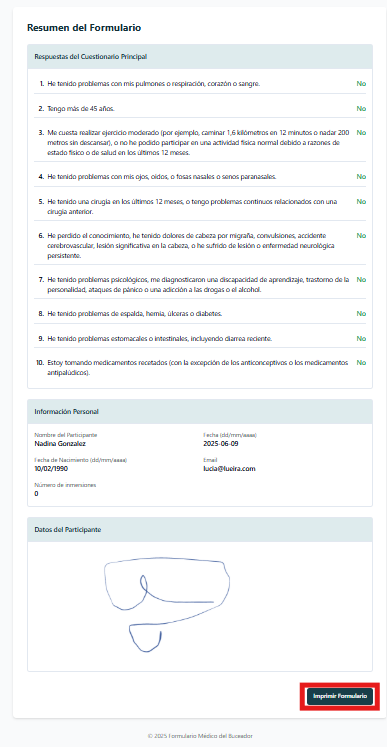
Using this link, the customer can answer the form and attach the documents we need, such as the medical report, their personal details, and sign the document. At the end, the customer will see the option to print the generated document, which contains all the information, and can choose to save the file as a PDF on their computer or phone, or print the document directly.
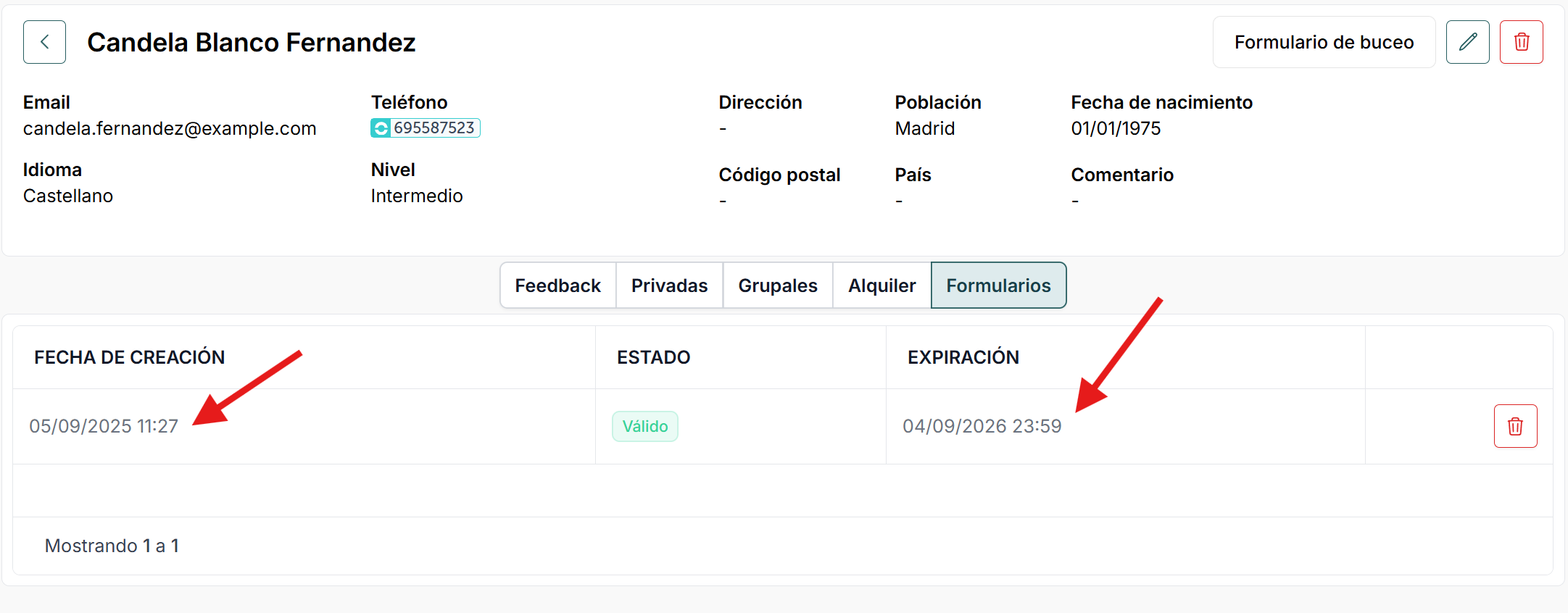
When a customer or participant answers the form, we will see a summary of this form on that family member's page, and by clicking the form ID we can see the customer's/participant's answers. The creation date and the expiry date of the medical report will also appear. If that customer fills in another form again, the history will remain in their customer record!
If you have any questions, don't hesitate to contact the Lueira support team!
Medical form FAQ
Frequently asked questions
When sending the medical form, Lueira asks me to "add a family member"
Each medical form is associated with a participant, and the participant must exist as a family member of the customer who made the booking. If the participants only have a name in the booking, convert them into family members of the customer from the order and send the form again. They can share the customer's phone number if you don't have theirs. If the option doesn't appear, contact support with the order reference.
A customer made a mistake filling in the medical declaration. Can they redo it?
If your medical form is configured as the product's Check-in form, you can invalidate it and resend it: see Managing Check-in form submissions. In any other case, contact support before deleting or recreating anything in the order.
I need to download the forms as PDF (for example, to send them to a marine reserve)
When they finish the form, the customer can save the document as a PDF or print it, as explained above. To review the answers of the whole group from the panel you have the Forms view in the session detail and the CSV download: see Viewing form responses. If the PDF download doesn't work for you, write to us with the order reference.
In which language does the customer receive the form?
For Online Store orders, in the language they booked in; for orders created from the panel, in the language of the customer's record. More detail in Product Forms.