

Multi-tenant user: access several organizations with the same email
How the multi-tenant user works in Lueira: use the same email to access several organizations, choose which one to manage when you sign in and switch organization without signing out.
On this page
What is the multi-tenant user?
Until now, each Lueira account (each organization or "tenant") had its own completely independent users. If the same person worked for two different businesses that use Lueira, they needed a different email for each one.
With the multi-tenant user, a single user account (same email and same password) can belong to several organizations at once, each with its own independent role. When you sign in, you choose which organization you want to work in.
1. Signing in when you belong to several organizations
The sign-in flow works like this:
You enter your email and password as usual on the sign-in screen.
If your user belongs to a single organization, you go straight in (no changes).
If your user belongs to several organizations, Lueira takes you to a selection screen titled "Select the organization you want to manage". There you will see all the organizations you have access to, together with the role you have in each one.
You choose the organization you want to work with and go in.
👉 Your session starts in the chosen organization. The rest of Lueira (orders, products, settings, etc.) always shows the data of that organization.
2. Switching organization without signing out
If you work in more than one organization, you do not need to sign out to jump from one to another:
Open the user menu (in the corner, where your avatar/name appears).
Click Switch organization.
You will go back to the selection screen with the list of your organizations, where you can choose another one.
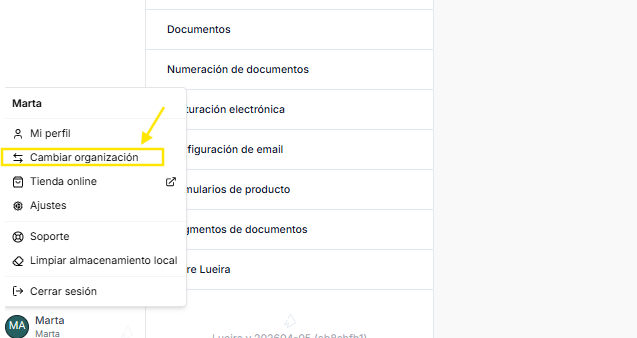
👉 The Switch organization option only appears in the menu when your user belongs to more than one organization. If you only belong to one, you will not see it.
3. Roles per organization
Your role is defined for each organization you belong to, not at the global user level. This means you can be, for example, Administrator in one organization and Point of sale in another.
The available roles are:
Administrator (ADMIN) → full access to the organization (settings, products, orders, finances, etc.).
Point of sale (POS) → access to the day-to-day operational features (order management, payments, etc.) without administration permissions.
When you select an organization at sign-in, Lueira automatically applies the role you have in that organization.
4. How a user is added to a new organization
Adding a user to an organization is done by an Administrator of that organization. When a user is invited with an email that already exists in another Lueira tenant, the system links that invitation to the existing account: the user does not need to create a new password or receive a different email; the next time they sign in they will simply see the new organization on the selection screen.
If the email does not exist yet in Lueira, it is created as a new registration, as before.
Frequently asked questions
Can I have different roles in each organization?
Yes. The role is assigned per membership in each organization, so you can be Administrator in one and Point of sale in another.
I am an Administrator and I want to invite someone who already works in another Lueira account. What do I do?
Just invite them with their usual email from your organization. If that email already exists in Lueira, the invitation will be linked to their current account and the next time they sign in they will see your organization on the selection screen.
Is the password the same for all organizations?
Yes. Since it is a single user account, the password is single too. Each organization keeps its data completely separate; the only thing shared between them is the account you sign in with.
Do I have to sign out to switch organization?
No. Use the Switch organization option in the user menu, which takes you back to the selection screen without signing out.
Related guides
- Custom roles in LueiraHow to create custom user roles in Lueira: choose, for each area, what each role can view and manage
- Team users and access problems: invite, change role, deactivate and recover the passwordHow to give someone on your team access to Lueira from Settings > Users, which role to choose, why the invitation fails if the phone number is missing, how to deactivate a user, recover the password and what to do if you cannot sign in from the browser, a tablet or the guides app.